How to Create a Chart
Learn step-by-step how to create a personalized seating chart in PowerPoint. Whether starting from scratch or modifying existing templates (Traditional, Lab, Discussion Group, Circle), you'll find the tools you need. Begin by navigating to the “Insert” menu and selecting “New Slide.” You can easily copy and paste shapes from examples and customize them using the “Rotate or Flip” options in the Drawing toolbar. Incorporate AutoShapes and Clip Art to enhance your design. This guide will help you effectively organize seating arrangements in various environments.

How to Create a Chart
E N D
Presentation Transcript
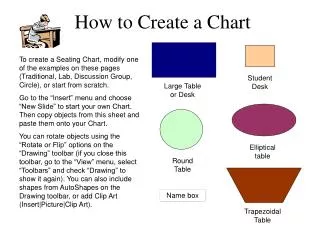
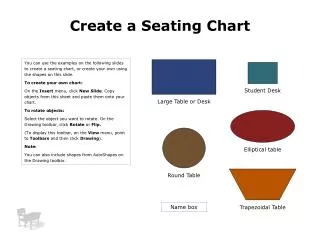
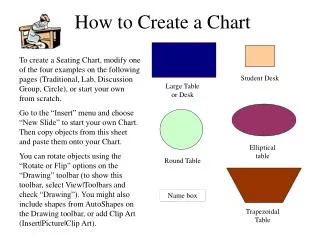
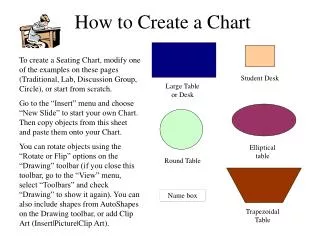
How to Create a Chart To create a Seating Chart, modify one of the examples on these pages (Traditional, Lab, Discussion Group, Circle), or start from scratch. Go to the “Insert” menu and choose “New Slide” to start your own Chart. Then copy objects from this sheet and paste them onto your Chart. You can rotate objects using the “Rotate or Flip” options on the “Drawing” toolbar (if you close this toolbar, go to the “View” menu, select “Toolbars” and check “Drawing” to show it again). You can also include shapes from AutoShapes on the Drawing toolbar, or add Clip Art (Insert|Picture|Clip Art). Student Desk Large Table or Desk Elliptical table Round Table Name box Trapezoidal Table
Traditional Name box Name box Name box Name box Name box Name box Name box Name box Name box Name box Name box Name box Name box Name box Name box Name box Name box Name box Name box Name box Name box
Discussion Group Name box Name box Name box Name box Name box Name box Name box Name box Name box Name box Name box Name box Name box
Lab Tables Name box Name box Name box Name box Name box Name box Name box Name box Name box Name box Name box Name box Name box Name box Name box Name box Name box Name box Name box Name box Name box Name box Name box Name box
Circle Name box Name box Name box Name box Name box Name box Name box Name box Name box Name box Name box Name box
Computer Lab Seating Chart Entrance to lab Name Name Name Name Name Name Name Name Name Name Name Name Name Name Name Name Name Name PSU MISL Lab Technology for Educators Class Jeanne Name Name Name Name Name Name Name Name Name Name Name Name Name Name Name Name Name Name Name Name Name Name