SmartBoard Basics
SmartBoard Basics. Hondo ISD Technology Department. Smartboard Basics Getting Familiar With Smart. Orienting your SmartBoard SmartBoard Tools Smart Notebook The Gallery Questions and Play Time. Orienting your smartBoard.

SmartBoard Basics
E N D
Presentation Transcript
SmartBoard Basics Hondo ISD Technology Department
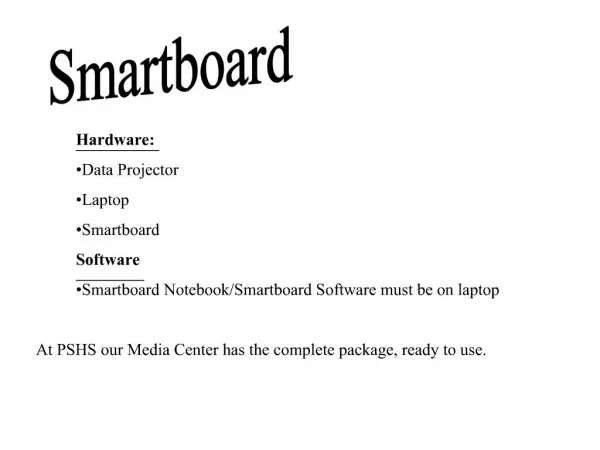
Smartboard BasicsGetting Familiar With Smart • Orienting your SmartBoard • SmartBoard Tools • Smart Notebook • The Gallery • Questions and Play Time
Orienting your smartBoard • Once the Smart software has been loaded to your computer, you will see a little blue box with a circle in the toolbar on your desktop. Clicking on this box will give you several options. • One Option is Orient- Orienting your SmartBoard before beginning your work is important. This is how you let the board know where you are when you annotate or select.
Floating tools • What are floating tools? • Basic Floating Tools • Optional Floating Tools • Hiding Floating Tools
Smart notebook • Smart Notebook is the software that allows you to create Smart content for your board. • What can I do with it? • Create Lessons • Use the Gallery • 2 MinuteTutorial
What Can I do with my SmartBoard? Two Minute Tutorial • Use the Notebook software to create interactive lessons. • The extensive Smart Notebook gallery has a wealth of resources for teachers to engage their students. • Use it as a whiteboard—a very fancy whiteboard. • You can write on it and save your annotations or record them for other classes. • Use it as an extension of your computer screen. • Anything you want to show your students that is on the computer, you can show them on the “big screen”.
Resources • Http://www.education.smarttech.com • http://exchange.smarttech.com • \\hisd-ad1\curriculum\SmartNotebook