Student and Instructor Login System with Grade and Course Management
This document outlines the flow control logic for a user login system catering to both students and instructors. It details the procedures for verifying usernames and passwords against the USER table, along with the management of class lists, grade entries, and course registrations. The system features error handling for invalid credentials, mechanism to switch between screens, and functions to open necessary forms while maintaining user-focused interaction. The design ensures a seamless experience for both student and instructor users while safeguarding data integrity.

Student and Instructor Login System with Grade and Course Management
E N D
Presentation Transcript
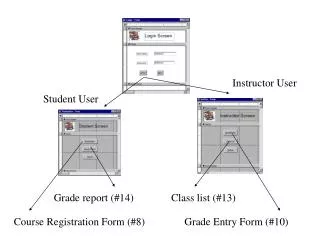
Instructor User Student User Grade report (#14) Class list (#13) Course Registration Form (#8) Grade Entry Form (#10)
Flow control with macro (#19) • Check UserName from the Login form against the USER table. • If UserName is not found in the USER table then: • Issue error message • Reset the UserName field • If UserName is legitimate then: • Check Password from the Login form against the USER table. • If Password does not match with the user then: • Issue error message • Reset the Password field • If Password is legitimate then: • Reset the password field • Hide the Login form • Open the student (instructor) screen for student (instructor) users
Flow control with macro (#20) • If the “Grade Entry” button is clicked then: • Open the grade entry form for that particular instructor (identified by its UserName) • Bring the grade point field in focus • If the “Class List” button is clicked then: • Open the class list report for that particular instructor (identified by its UserName) in Print Review mode • If the “Return” button is clicked then: • Reset the UserName field in the Login form • Close the instructor screen • Open the Login form
Flow control with macro (#21) • If the “Registration” button is clicked then: • Open the Course Registration form for that particular student (identified by its UserName) • Bring the Courses field in focus • If the “Grade Report” button is clicked then: • Open the grade report for that particular student (identified by its UserName) in Print Review mode • If the “Return” button is clicked then: • Reset the UserName field in the Login form • Close the student screen • Open the Login form