Effective Tabbing Techniques in MasterCam for Material Separation
10 likes | 135 Vues
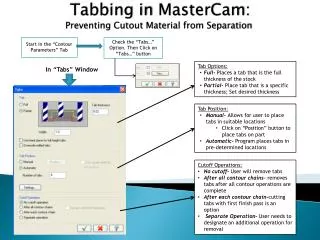
MasterCam offers robust tabbing options to prevent cutout materials from separating during machining. Under "Contour Parameters," enable the "Tabs" option and click the "Tabs..." button to customize your settings. You can choose between full and partial tabs based on stock thickness, and determine tab position manually or automatically. Manage cutoff operations by selecting when tabs are removed—either after all contour operations or after each contour chain. These features ensure precision and control while machining parts, enhancing overall efficiency.


Effective Tabbing Techniques in MasterCam for Material Separation
E N D
Presentation Transcript
Tabbing in MasterCam: Preventing Cutout Material from Separation Start in the “Contour Parameters” Tab Check the “Tabs…” Option. Then Click on “Tabs…” button • Tab Options: • Full- Places a tab that is the full thickness of the stock • Partial- Place tab that is a specific thickness; Set desired thickness In “Tabs” Window • Tab Position: • Manual- Allows for user to place tabs in suitable locations • Click on “Position” button to place tabs on part • Automatic- Program places tabs in pre-determined locations • Cutoff Operations: • No cutoff- User will remove tabs • After all contour chains- removes tabs after all contour operations are complete • After each contour chain-cutting tabs with first finish pass is an option • Separate Operation- User needs to designate an additional operation for removal