Download
1 / 5
50 likes | 190 Vues
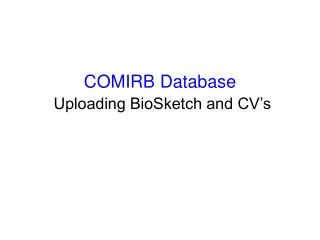
Learn the step-by-step process for uploading your BioSketch and CV in the COMIRB database. After logging into your account, navigate to "My Profile" and click "Edit." Select "BioSketch" to start uploading or building your BioSketch from templates. Use the "Upload New" option to add your CV by selecting "Browse" to locate your file and then hitting "Upload." If you need to update or delete a previously uploaded document, simply check the box next to the item and select "Delete." Simplify your document management with these easy steps!

E N D
After logging into your account select “My Profile” • Then select “Edit”
Once your profile loads up select “BioSketch” to begin the process
At the bottom of the page you will see the option to “Upload New” • Select this option to upload your CV • You also have the option to build a BioSketch from the templates • 4. You know have the option to label and upload your CV • 5. Select “Browse” to locate your CV • 6. Then select “Upload”
At this point you have uploaded your BioSketch or CV • If you wish to upload another copy or revise this copy, you can select • The box next to the item, then select “Delete”