
SlideServe
Menu
Préférences
© SlideServe · v2026

Microsoft power point

dwayne avatar
148 diapositives · 1.9K Views · Oct 01, 2014

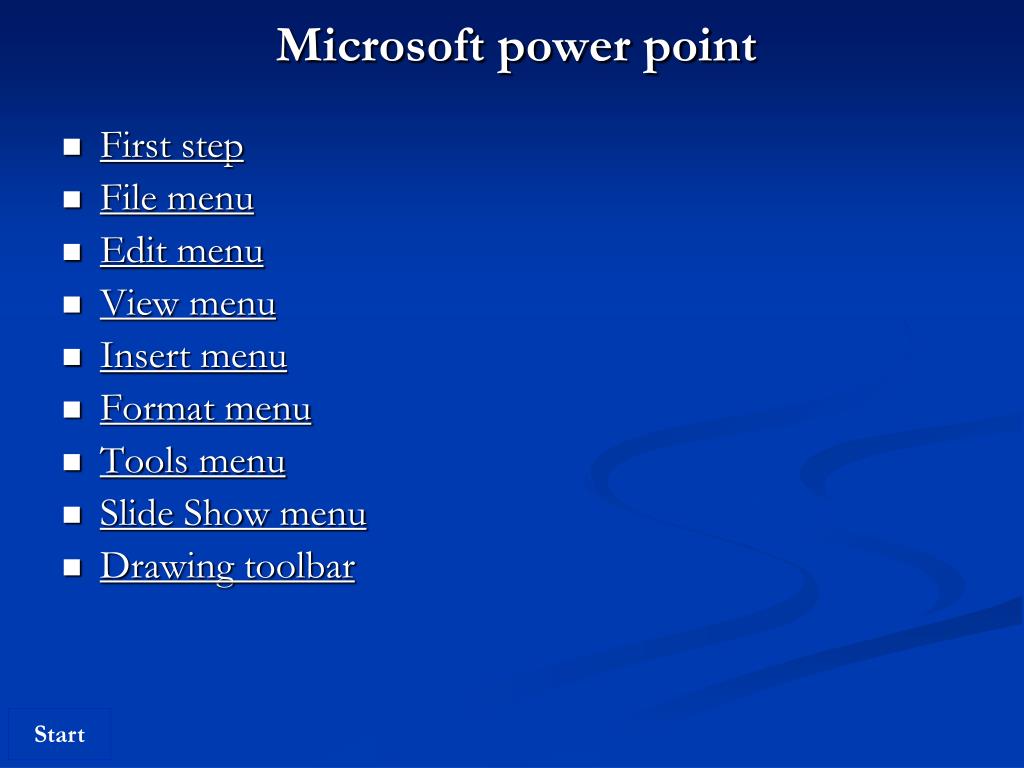
Microsoft power point. First step File menu Edit menu View menu Insert menu Format menu Tools menu Slide Show menu Drawing toolbar. First step. Add the word Ahmed as the first item in the bulleted list on this slide.
Microsoft power point - slide 1
01 / 148Microsoft power point
1 / 17

Télécharger la présentation

Microsoft power point
Une image / un lien ci-dessous est fourni (tel quel) pour télécharger la présentation

Politique de téléchargement : le contenu du site vous est fourni TEL QUEL pour votre information et votre usage personnel ; il ne peut être vendu, concédé sous licence ni partagé sur d’autres sites sans l’accord de son auteur.Le contenu vous est fourni TEL QUEL, pour votre information et votre usage personnel uniquement. Téléchargez la présentation en cliquant sur ce lien. Lors du téléchargement, si vous ne parvenez pas à télécharger une présentation, l’éditeur a peut-être supprimé le fichier de son serveur.Pendant le téléchargement, si vous ne parvenez pas à obtenir une présentation, le fichier a peut-être été supprimé par l’éditeur.

F I N

Plus de contenu associé

Transcription de la présentation
  1. Microsoft power point • First step • File menu • Edit menu • View menu • Insert menu • Format menu • Tools menu • Slide Show menu • Drawing toolbar

  2. First step • Add the word Ahmed as the first item in the bulleted list on this slide. • Change the second bullet on this slide from ICDL Certification to ECDL Certification.Click anywhere outside the bulleted list placeholder when you have finished. • Add a note to this slide saying: Power point presentation.Click anywhere when you have finished. • A second presentation is open. Make the icdl.ppt the active file. • Use the Microsoft Office Assistant to find help on 35mm slide.

  3. Add the word Ahmed as the first item in the bulleted list on this slide. Ahmed SUBMIT First step

  4. Change the second bullet on this slide from ICDL Certification to ECDL Certification.Click anywhere outside the bulleted list placeholder when you have finished.

  5. SUBMIT Try Again

  6. Add a note to this slide saying: Power point presentation.Click anywhere when you have finished.

  7. SUBMIT Try Again

  8. A second presentation is open. Make the icdl.ppt the active file.

  9. SUBMIT Try Again

  10. Use the Microsoft Office Assistant to find help on 35mm slide.

  11. SUBMIT Try Again

  12. File menu • Create a new blank presentation. • Open the presentation named icdl.ppt, which is in My Document folder. • Save the ECDL Presentation as an outline/RTF file. • You wish to produce handouts of this presentation on A4 sized paper. • You want the output best suited for an onscreen presentation. • Print 1 copy of the Notes pages for slides 2 to 5 (inclusive) in this presentation. • Change the output setting for this presentation to those best suited for printing 35mm slides. • Print 4 copies of the outline of this presentation.

  13. Create a new blank presentation.

  14. SUBMIT Try Again

  15. Open the presentation named icdl.ppt, which is in My Document folder.

  16. SUBMIT Try Again

  17. Save the ECDL Presentation as an outline/RTF file.

  18. SUBMIT Try Again

  19. You wish to produce handouts of this presentation on A4 sized paper.

  20. SUBMIT Try Again

  21. You want the output best suited for an onscreen presentation.

  22. SUBMIT Try Again

  23. Print 1 copy of the Notespages for slides 2 to 5 (inclusive) in this presentation.

  24. SUBMIT Try Again

  25. Change the output setting for this presentation to those best suited for printing 35mm slides.

  26. SUBMIT Try Again

  27. Print 4 copies of the outline of this presentation.

  28. SUBMIT Try Again

  29. Edit menu • Move the graphic to slide 5 in this presentation. • Copy slide number 3 and paste it as slide number 7 in this presentation. • You no longer need the sun Auto-Shape.Delete it now, without place it in the clipboard. • Duplicate the selected slide as slide number 3 in ECDL , which is also currently open. • Delete the slide 3 from this presentation.

  30. Move the graphic to slide 5 in this presentation.

  31. SUBMIT Try Again

  32. Copy slide number 3 and paste it as slide number 7 in this presentation.

  33. SUBMIT Try Again

  34. You no longer need the sun Auto-Shape.Delete it now, without place it in the clipboard.

  35. SUBMIT Try Again

  36. Duplicate the selected slide as slide number 3 in ECDL , which is also currently open.

  37. SUBMIT Try Again

  38. Delete the slide 3 from this presentation.

  39. SUBMIT Try Again

  40. View menu • Switch to Slide Sorter View. • Access the Slide Master, and remove the sun graphic. • Access the Header and Footer dialog box and add slide number to all slides except for the title slide of this presentation. • Drag each PowerPoint view to the box beside the purpose for which it is most suitable. • Drag each PowerPoint view to the box beside the purpose for which it is most suitable. • Access the menu option you would use to preview how this slide and its speaker’s note will print.

  41. Access the Header and Footer dialog box and add the word Icdl to the footer of the current slide. • Access the Header and Footer dialog box and add the fixed date 02/09/01 to all slides in this presentation. • Remove the formatting toolbar from the Microsoft PowerPoint window. • Change the zoom level of the current view to fit. • Access the Slide Master and add an circle inside the Pink box. • Access the Header and Footer dialog box and add an automatically updating date to all slides in this presentation.

  42. Switch to Slide Sorter View.

  43. SUBMIT Try Again

  44. Access the Slide Master, and remove the sun graphic.

  45. SUBMIT Try Again

  46. Access the Header and Footer dialog box and add slide number to all slides except for the title slide of this presentation.

  47. SUBMIT Try Again

  48. Drag each PowerPoint view to the box beside the purpose for which it is most suitable. Insert a picture. Making global change to your slides. Identify slides that have transition, animations or are hidden. Work with the structure of your file. Outline Slide Sorter Slide Master SUBMIT

  49. Drag each PowerPoint view to the box beside the purpose for which it is most suitable. Rehearse presentation with timings, transition and animation. Making global change to your slides. Work with the structure of your file. Identify slides that have transition, animations or are hidden. Outline Slide Sorter Slide Show Master SUBMIT

  50. Access the menu option you would use to preview how this slide and its speaker’s note will print.