Manage Your Work Orders Efficiently with Our Online System
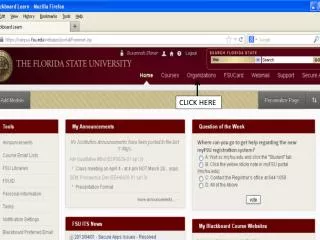
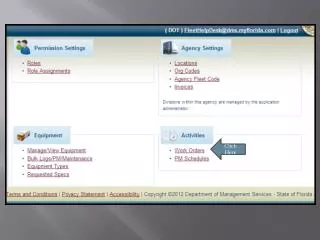
Streamline your work order management with our user-friendly online interface. Start by selecting the desired date from the calendar that appears when you click. Once you successfully enter your work order, indicated by the green bar at the top, proceed to add work order items. Set your order fields and confirm item completion with the green bar. Enter parts with all required details, including part number and cost, before saving. Finally, update work items and save your work order for efficient tracking and management.

Manage Your Work Orders Efficiently with Our Online System
E N D
Presentation Transcript
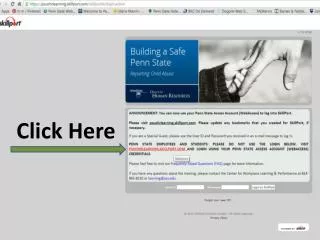
Click Here Choose Shop
Choose Enter
The green bar at the top indicates the work order is successfully entered
Now you can add your work order items Click Here
Set this to Work Order Add fields, then Click
Enter Parts if you have any. Then click Update a Work Item. Click to add Parts
Part will not save unless part number, quantity and per cost are entered Click Save Part when done