Introduction to Java GUI Programming with AWT and Swing
This guide introduces graphical user interfaces (GUIs) in Java using AWT and Swing. Learn how to create interactive components like buttons, text fields, and combo boxes, and understand how to manage layout with various layout managers such as BorderLayout, FlowLayout, and GridLayout. You will see how to handle user input through action events and make your application responsive by implementing ActionListener. This resource is perfect for those looking to enhance their Java programming skills with practical examples and clear explanations.

Introduction to Java GUI Programming with AWT and Swing
E N D
Presentation Transcript
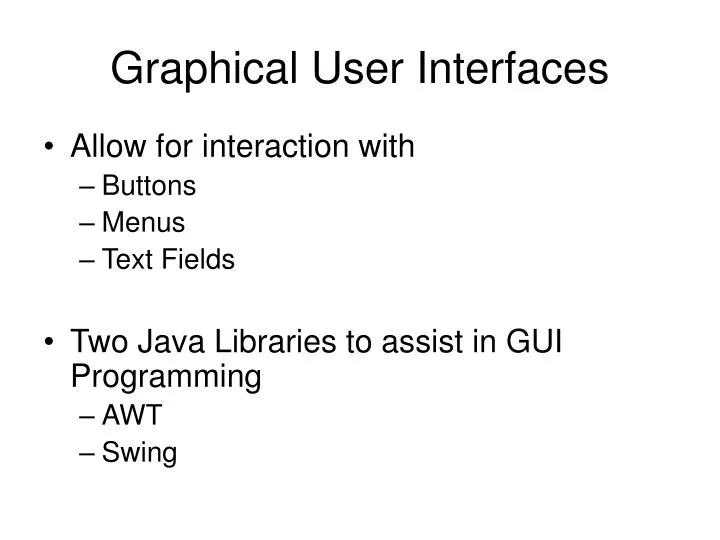
Graphical User Interfaces • Allow for interaction with • Buttons • Menus • Text Fields • Two Java Libraries to assist in GUI Programming • AWT • Swing
Text Fields • provide a line of user-updatable text • need to - import javax.swing.*; - declare a variable private JTextField input; - construct input = new JTextField( "Enter text here " ); - place in a window - use. For example, String userInput = input.getText();
User enters desired text in the text field at the north of the window • With each click on the canvas, the text is displayed
import objectdraw.*; import java.awt.*; import javax.swing.*; public class TextController extends WindowController { private JTextField input; public void begin() { input = new JTextField( "Enter text here" ); Container contentPane = getContentPane(); contentPane.add( input, BorderLayout.NORTH ); contentPane.validate(); } public void onMouseClick( Location point ){ new Text( input.getText(), point, canvas ); } }
The Container Class • Graphical components must be put in a Container to be displayed import java.awt.*; Container contentPane = getContentPane(); contentPane.add( aComponent, position ); • Validate to be sure components displayed properly
Layout of Components in a Container • Many layout options • One example: BorderLayout • BorderLayout.NORTH • BorderLayout.EAST • BorderLayout.SOUTH • BorderLayout.WEST • BorderLayout.CENTER
Buttons Let’s add a button to our previous program. Clicking on the button clears the canvas. • Want clicks on the button to trigger a program action • Requires slightly more programming effort than text fields
import objectdraw.*; import java.awt.*; import java.awt.event.*; import javax.swing.*; public class TextButtonController extends WindowController implements ActionListener { private JTextField input; public void begin() { input = new JTextField( "Enter text here" ); JButton clearButton = new JButton(" Clear canvas "); Container contentPane = getContentPane(); contentPane.add( input, BorderLayout.NORTH ); contentPane.add( clearButton, BorderLayout.SOUTH ); contentPane.validate(); clearButton.addActionListener(this); }
public void onMouseClick( Location point ){ new Text( input.getText(), point, canvas ); } public void actionPerformed( ActionEvent evt ) { canvas.clear(); } }
Action Events • When a JButton is clicked • an ActionEvent is generated • actionPerformed is executed • Just as onMouseClick is executed whenever a user clicks on the canvas • actionPerformed is provided with a parameter • Contains information about the object that triggered the event
Checklist for using JButtons • Construct the JButton • Add it to the content pane of the WindowController extension and validate • So that the WindowController extension responds to events generated by the JButton • Add this as a listener • Make sure WindowController extension implements ActionListener • Add actionPerformed method
Combo Boxes • The Swing package’s name for pop-up menus: JComboBox • Let’s use one to control the speed of a simple falling ball animation • Three speed options: slow, medium, fast FallingBall.java
Using a JComboBox MenuBallController.java
Checklist for JComboBoxes • Construct the JComboBox and add selection options • Add it to the content pane of the WindowController extension and validate • So that the WindowController extension responds to events generated • Add this as a listener • Make sure WindowController extension implements ActionListener • Add actionPerformed method
Better GUI design: basic tools • Panels • Layout Managers
The JPanel • Provided by Swing • Organize subcomponents • Add subcomponents to JPanel • Add JPanel to Container
Organizing JButtons in a JPanel • Construct the JPanel JPanel southPanel = new JPanel(); • After each JButton is constructed, add it to the JPanel southPanel.add( fastButton ); southPanel.add( mediumButton ); southPanel.add( slowButton ); • Add the JPanel to the container contentPane.add(southPanel, BorderLayout.SOUTH);
FlowLayout • JPanels use a different layout manager: FlowLayout • Lays out its components left to right
Which button? If we make this a listener for each of the three buttons, as we have before…actionPerformed method must determine which one clicked public void actionPerformed(ActionEvent evt) { if (evt.getSource() == slowButton) { speed = SLOW_SPEED; } else if (evt.getSource() == mediumButton) { speed = MEDIUM_SPEED; } else { speed = FAST_SPEED; } if (droppedBall != null) { droppedBall.setSpeed(speed); } }
More on Layout Managers • Determine how GUI components should be displayed • Do their best to accommodate when user changes window size • Some useful layout managers: • BorderLayout: adds to sides or center • FlowLayout: adds left to right • GridLayout: divides a container into equally sized parts • southPanel.setLayout( new GridLayout(1, 3) );
Sliders • Used to graphically select values in a range • Can be vertical or horizontal • stateChanged method replaces actionPerformed • Swing’s name: JSlider
A slider for controlling speed import objectdraw.*; import java.awt.*; import java.awt.event.*; import javax.swing.*; import javax.swing.event.*; public class SliderBallController extends WindowController implements ChangeListener { private JSlider speedSlider; public void begin() { speedSlider = new JSlider (JSlider.HORIZONTAL, SLOW_SPEED, FAST_SPEED, SLOW_SPEED); speedSlider.addChangeListener(this); }
A slider for controlling speed • public void stateChanged (ChangeEvent evt) { • speed = speedSlider.getValue(); • If (droppedBall != null) { • droppedBall.setSpeed(speed); • } • } • } • Complete SliderBallController class
Checklist for JSliders • Construct the JSlider; provide four parameters: • Constant that says whether vertical or horizontal • Minimum and maximum integer values for slider • Initial value of the slider • Add it to the content pane of the WindowController extension and validate • So that the WindowController extension responds to events generated • Add this as a listener • Make sure WindowController extension implements ChangeListener • Add stateChanged method • Import javax.swing.event package
Labels • JLabel class provided by Swing • Single line of read-only text • A passive component - no event listener required! • Useful for providing labels for sliders, text fields, etc.
Using JLabels • Two ways to construct • Providing text only JLabel speedLabel = new JLabel("Speed is "); • Providing text and justification JLabel speedLabel = new JLabel("Speed is ", JLabel.RIGHT); • Modifiable with setText method speedLabel.setText("Speed is " + speed); LabelBallController.java
Handling Keystrokes • Can write Java programs so that every keystroke made by the user generates an event that can be handled • No need to add special components to our already-existing window
Handling Keystrokes • Need to associate listener with keyboard events this.addKeyListener( this ); // in a WindowController extension canvas.addKeyListener( this ); // sometimes need this! setFocusable( true ); • Need to make sure listener has appropriate method to handle key events • public void keyPressed ( KeyEvent evt ) • public void keyReleased ( KeyEvent evt ) • public void keyTyped ( KeyEvent evt ) • KeyEvents include: VK_A – VK_Z, VK_0 – VK_9
Review • Construct the GUI component • Add the component to a container (i.e., a panel or the content pane of a window) • If a listener is needed • Add this as a listener for the GUI component • Make sure the WindowController extension implements the appropriate listener interface • Add the event-handling methods promised by the listener interface