Electronic Reporting in TREDS
Explore the capabilities of the Traffic Records Electronic Data System (TREDS) for interactive crash mapping and reporting. This guide highlights the importance of accurate GPS data formatting in generating reliable crash maps for Virginia in 2009. Discover various reports available, such as the All Crashes Report, which includes all submissions and their statuses, and Crash Aging Reports that track pending approvals. Learn how to filter reports by date, crash type, day of the week, and jurisdiction, as well as how to export data in multiple formats, including Excel.

Electronic Reporting in TREDS
E N D
Presentation Transcript
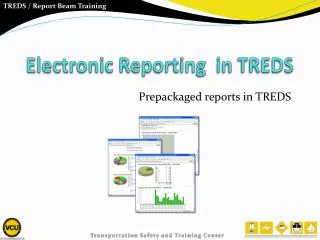
Electronic Reporting in TREDS Prepackaged reports in TREDS
Interactive Crash Mapping • Quality of the interactive crash map depends on: • Accuracy of the GPS latitude and longitude data • Use the decimal format for GPS latitude/longitude • Do not use the degrees, minutes and seconds format • Map within 10 feet of the location
Interactive Crash Mapping Total No. of Crashes in Virginia for 2009
Report– All Crashes All Crashes Report shows all crashes submitted to TREDS including reports awaiting supervisor approval and those that have been approved/sent to the DMV. Report filter requires Start Date and End Date to be selected.
Report – Crash Aging Crash Aging Report displays all reports in your department that have not been approved/sent to DMV • Crash Status column shows the status of the report: • PO Under Correction – In submitting Officer’s ‘My Report Queue’ awaiting correction • PO Supervisor Review – In Supervisor/Department ‘My Report Queue’ awaiting approval • PO Final Review- In LE Clerk’s (2nd Level Approval) ‘My Report Queue’ awaiting approval • Report Assigned To column shows email address of the Officer/Supervisor who has the report in his/her ‘My Report Queue’
Report – Crashes by Month • Select the Date Range • Select the Crash Type Name – Fatal Crash, Injury Crash ,Property Damage Crash or All • Select the Day of Week – Mon, Tues, Wed, Thu, Fri, Sat, Sun or All • Select the Hour – ‘Zero through 23’, or All. • Select Jurisdictions – All, County, Town or City • Click on ‘View Report’
Exporting Data in TREDS TREDS allows users to export the report in many formats.