Download
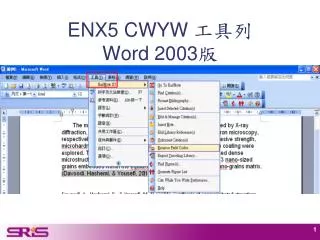
1 / 54
540 likes | 665 Vues
This guide provides comprehensive instructions on how to integrate EndNote with Microsoft Word 2003 for managing citations and references. Learn how to set font sizes, give your bibliography a title, and adjust the formatting between references. Discover how to import citations from EndNote into Word, choose bibliography formats such as APA, and manage your citations effectively. The guide also covers troubleshooting tips for common issues, managing edits, and formatting bibliography styles to enhance your document's presentation.

E N D
1 1.設定字型和大小 2.給文獻書目一個標題(如:Reference或是參考文獻) 3.調整參考文獻之間的排版 2 3
選擇書目格式的方法,以APA為例 2 1 3
1 在word中選擇書目格式的方法 2
2 1 1.選擇欲加入WORD的書目 2.點選快速鍵
1 2 3 作者(年代) 4
作者(年代) (作者,年代)
1 1.輸入查詢關鍵字 2.選取欲匯入的書目 3.選擇匯入格式的樣式 2 3
在word匯入endnote中的書目─利用Insert Selected Citations
如:調整引用書目的次序 調整後請選擇Update
如果您在EndNote有重新匯入書目資料或手動更改該筆書目資訊,請選擇Updatefrom MyLibrary,讓資料同步更新
1 在word中選擇Numbered 2
選擇是否讓Citation可以快速連結到下方的參考書目選擇是否讓Citation可以快速連結到下方的參考書目 預設
選擇是否讓Citation以藍色字體顯示,並加連結底線選擇是否讓Citation以藍色字體顯示,並加連結底線
可以在Edit&Manage Citation可看到您在整篇文章的哪些地方註記
想要更改書目(如頁數有誤、拼字有誤),請點選Edit Library Reference 例如:將頁數補上 修改完請務必儲存檔案
請不要點選到Unformat Citations,不小心誤點的補救方法
1 不小心誤點Unformat Citations的補救方法 2 點擊Turn On 變成Turn off 3
將此份文章的引用文獻匯出至另一個endnote Library
1 2 3
請另存一個檔名,並請記住自己存在哪個路徑之下請另存一個檔名,並請記住自己存在哪個路徑之下 1 2 3
會另開一份文件,建議另存一份沒有參數的word檔案,會另開一份文件,建議另存一份沒有參數的word檔案, 繳交出去;且保留一份有參數的檔案以便日後修改。
1 2
Line spacing: 1.5 lines Space after: 1.5 lines