Day 02: T ools, messaging, results, error handling
210 likes | 326 Vues
Explore the tools and techniques for effective geoprocessing with ArcGIS. This guide covers custom toolbox creation, error handling, and messages to enhance your GIS workflows. Learn how to build your own script tools and manage results using Python and the ArcGIS environment. Gain insights into using ModelBuilder and scripting for geospatial analysis. Whether you're processing historical maps or developing stunning hiking trail maps, this resource will help you optimize your GIS workstation and handle errors efficiently.


Day 02: T ools, messaging, results, error handling
E N D
Presentation Transcript
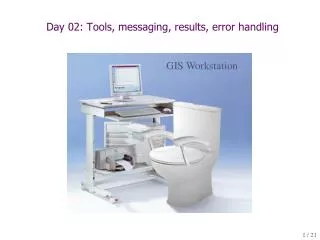
Day 02: Tools, messaging, results, error handling GIS Workstation
Something cool …World Construction Set • http://www.3dnature.com
More cool stuff … Frankos Maps – Beautiful maps of hiking trails, etc. created using ArcGIS and "other" software David Rumsey's Historical MapsDetailed scans of historical maps on the internet!
Tools, results, messages, errors • Using ArcGIS Toolbox of Geoprocessing tools • Processing results • Creating your own toolbox with your own tools and messaging • Error trapping
ArcToolbox & Geoprocessing Example: * ArcToolbox Toolbox * * Tool Toolset Tools may have same nameif they are in different toolboxesExample: Clip_analysis Clip_management System tool Model Toolboxes, Toolsets, Tools depend on license Script
Accessing Geoprocessing in ArcGIS GUI Python Window Models Scripts Run in PythonWindow,PyScripter/IDE,or command line
ToolName ToolboxAlias Using ArcGIS tools with Python To use any tool … import arcpy arcpy.<ToolName>_<ToolboxAlias>(args)
Using ArcGIS tools with Python OR, open the tool and get Tool Help
Using ArcGIS tools with Python … and scroll downto Syntax andCode samples
Result inputCount: Integer maxSeverity: Integer messageCount: Integer outputCount : Integer resultID: String status : Integer cancel() : Void getInput(index : Integer) : Recordset or String getMapImageURL({parameter_list}, {height}, {width}, {resolution}) : String getMessage(index : Integer): String getMessages({severity : Integer}) : String getOutput(index : Integer) : Object getSeverity(index : Integer) : Integer Tool Result object
Creating custom script tools To create a script tool, you need three things: • A script • A custom toolbox • A precise definition of the parameters of your script
Create a script From scratch … • Write and debug in PyScripter • Use sys.argv for script parameters/arguments to start • Once script is working, add it to a toolbox … Using ModelBuilder • Create a model • Export to Python • Edit in PyScripter (might not work in ModelBuilder after edit) • Once script is working, add it to a toolbox …
Create custom Toolbox Custom location Create a custom toolbox(.tbx file) Default location username
Defining script tool input parameters Like sys.argv without 1024 byte limit and only used in script tools
Defining script tool output parameters # Set output parameter # arcpy.SetParameterAsText(1, outFCName) Refer to Setting output parameters … in help.arcgis.com
Tool Messages Refer to Writing messages in script tools in help.arcgis.com
Error trapping • GetMessages(2) Messages with severity of 2 = Error Messages