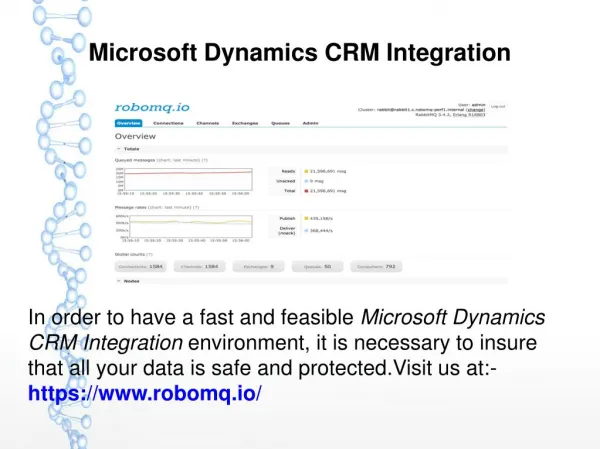
Microsoft Dynamics CRM 2013
Microsoft Dynamics CRM 2013. Sanaullah Khan. Application – New Features. Reimagined User Interface Site Flattening Navigation Bar and Command Bar Form Controls Composite Controls Auto Save People Pictures Access Teams Business Process Flow. Concepts Introduced.

Microsoft Dynamics CRM 2013
E N D
Presentation Transcript
Microsoft Dynamics CRM 2013 Sanaullah Khan
Application – New Features • Reimagined User Interface • Site Flattening • Navigation Bar and Command Bar • Form Controls • Composite Controls • Auto Save • People Pictures • Access Teams • Business Process Flow
Concepts Introduced • December 2012 Service Update • Reimagined User Interface • In-page Experience • Navigation Model • Bing Maps • Auto Save • Business Process Flows
Reimagined User Interface • December 2012 Service Update – 3 form modes • Classic • Read Optimized (inline controls to enable editing) • Process Flow based UI for • Contact • Opportunity • Lead • Account • Case
Reimagined User Interface • December 2012 Service Update • Form Events/Client SDK was not supported in • Read Optimized form • Process Flow UI form • Fallback to Classic mode • Dynamics CRM 2013 • No Extensibility Gaps • No fallback to Classic mode
Other Ribbonized entities New UX Classic Classic CRM 2011 • COLAC = Contact, Opportunity, Lead, Account and Case • RO - Read Optimized Dec 12 Service Update New UX/ classic Classic/RO Classic • COLAC = Contact, Opportunity, Lead, Account and Case • RO - Read Optimized Classic New UX Classic/RO CRM 2013
Reimagined User Interface • New Form Experience • Most of the end user facing system entities (30 entities) • All Custom entities • Classic Forms • Classic forms are restricted to System Settings area
Refreshed Entities Sales Process: Leads User Provided Est. Revenue Sales Sales Process: Opportunities Products & Pricing Quotes & Proposals Orders & Invoices Competitors Sales Literature Goals & territories Performance Mgt. Marketing Campaign Mgt Simple Campaign Blasts List Mgt. Legend Refreshed Not refreshed Goals, Performance Mgt. Service Multichannel Support Queue Mgt. Knowledge Mgt. Service Contracts Service Scheduling / Mgt. Phone Support Phone, Task, Email, Notes Social Collaboration / Activity Feeds Common / CRM Essentials Notes & Activities Document Mgt. Reports Data Import Search / Advanced Find Email & Mail Merge Templates Customers (Accounts, Contacts) Dashboards Business Rules, Command Bar Config / Customize Organization Settings Organization & User Mgt. (Business Units, Teams, Users) Security Roles & Profiles Data Mgt. ( Cleansing, Auditing) Dialog/ Workflow Customization & Extensibility MUI & Multi-Currency Billing & Subscription Mgt. Process config Dupe detection
Site Flattening • An attempt to eliminate • Continuous window contextual switches • Excessive window opening which is • Difficult to manage and • Impacts performance • Site Flattening has been implemented to • Reduce the number of clicks • Optimize the use of pop-up windows
Site Flattening • In-Page Experience • New Navigation Model • In-page experience rather than pop-up window
Navigation Model • Optimized Information display • Quick Access to CRM data
Navigation Model • Navigation Levels • Module or Area Selector • Entity Name or Sub Area • Title of the entity record
Navigation Bar • Modules or Areas
Navigation Bar • Entity Names or Sub Areas
Navigation Bar • Entity Records
Navigation Bar • Related Records
Command Bar • Problem with CRM 2011 Ribbon Model • Provides a lot of information in a very dense format.
Command Bar • Why Command Bar ? • Quick and easy access to small set of actions • Less commands with overflow menu • Supports Ribbon migration to new Command bar
Command Bar Types • Dashboard Command Bar • Form Command Bar • Grid Command Bar • Associated Grid Command Bar
Command Bar • Customise using Ribbon XML • Same schema as CRM 2011 Ribbon XML • Architecture has been optimized to boost performance of • Command Bar rendering experience
Form Controls • Inline Lookup Control • Introduced in December 2012 Service Update • Supports in-page experience
Form Controls • Three Modes • Read Mode • Edit Hint Mode • Edit Mode
Form Controls • Edit Hint Mode
Form Controls • Edit Mode
Form Controls • Inline Sub-grid Control • Introduced in December 2012 Service Update • Supports in-page experience
Sub-grid Types • Form Sub-grids • Unlike CRM 2011, sub-grids do not update form’s contextual command bar/ribbon. • Associated Grids • Based on relationships • Customizable Command Bar • Dashboard Grids • Homepage Grid • Landing page of an entity • Customizable Command Bar
Inline editable Sub-grids • Not available for all entities • Products Sub-grid on • Opportunity • Quote • Order • Invoice • “Role” column of Stakeholder Sub-grid on • Opportunity
Composite Controls • Name and Address fields in CRM 2013 • Bing Map Control
Bing Map Control • Address composite control updates a Bing Map • Multiple Bing Map on a single form are NOT supported
Auto Save • Triggers every 30 seconds • Plug-ins on savewill run 36
People Pictures • CRM 2013 supports “Image” data type • Only one image per entity is supported • Display an image in the form header on any entity • Some out of the box entities will be image enabled by default • Contact • Account • Lead • User
Access Teams • Collaboration Teams • No Security Role • Any entity can now be Access Team enabled • Only one Access Team per record (CRM Online) • More than one Access Teams can be associated per record (On-Premise)
Access Teams • Auto-Created Access Teams • User Created Access Teams • Grants Access to • Record • Related child records
Access Teams • - Account Team • Full team that works together on an account. May also include an executive sponsor, dedicated support representative and a project manager. • Opportunity Team • Sales people that normally work together on sales opportunities. A typical opportunity team might include the account manager, the sales representative and a pre-sales consultant.
Business Process Flow • Streamlined user experience to lead people through the processes • Step-by-Step guide to enter data • Guided stage progression • Available for all entities • Process centric approach
Capabilities • Configuration • Multiple processes per entity • Multi-entity processes • Stage-gating • Role based processes • End User Business Process Flow UI • Process centric experience • Extensibility • Define process for any entity • Solution Awareness
Components • Configure Business Process Flow • Define Stages • Define Steps • Each stage contains a group of steps • Each step represents a field • Stage-gating • Step can be marked as “Required”