Download
1 / 3
30 likes | 155 Vues
This video tutorial guides you through the process of setting up WordPress on your BUS311 student website using cPanel. You will learn how to navigate the Internet Platform, utilize the Fantastico icon to install WordPress in the root directory, and access your website with the provided cPanel credentials. We’ll cover installation confirmation and demonstrate how posts will appear on your homepage using the default WordPress theme. Follow along to effectively manage your website for your assignments and projects.

E N D
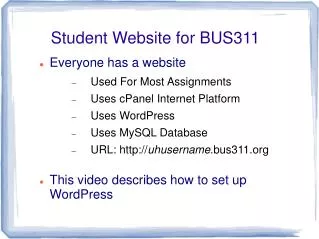
Student Website for BUS311 Everyone has a website Used For Most Assignments Uses cPanel Internet Platform Uses WordPress Uses MySQL Database URL: http://uhusername.bus311.org This video describes how to set up WordPress
cPanel Internet Platform Most Common Internet Platform Internet “Platform As A Service” (PaaS) Email Server Web Server Database Server Login http://uhusername.bus311.org/cpanel Username: uhusernamewith last character replaced with the number 0 Password: “pw”+ <last 4 digits of ID>
Set Up WordPress In cPanel, click Fantastico icon ... Install WordPress in “root” directory Use cPanel Username and Password So I can go in and fix your website Confirm Installation http://uhusername.bus311.org See Default WordPress Theme Posts appear one by one on Home page Second sample page