Employee Termination Process in PennWorks
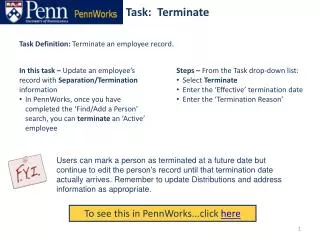
This guideline outlines the steps to update an employee’s record with Separation/Termination information in PennWorks. After conducting a ‘Find/Add a Person’ search for an active employee, navigate to the Task drop-down list, select 'Terminate,' and enter the effective termination date and reason. Note that users may mark an individual as terminated for a future date while still being able to edit their records until that date arrives. Ensure to update distributions and address information accordingly before completing the termination process.

Employee Termination Process in PennWorks
E N D
Presentation Transcript
Task: Terminate Task Definition: Terminate an employee record. • In this task – Update an employee’s record with Separation/Termination information • In PennWorks, once you have completed the ‘Find/Add a Person’ search, you can terminate an ‘Active’ employee • Steps – From the Task drop-down list: • Select Terminate • Enter the ‘Effective’ termination date • Enter the ‘Termination Reason’ Task: Terminate Users can mark a person as terminated at a future date but continue to edit the person’s record until that termination date actually arrives. Remember to update Distributions and address information as appropriate. To see this in PennWorks...click here
Task: Terminate (cont’d) Click on Terminate to advance to the next screen
Task: Terminate (cont’d) From the Bio screen, enter the appropriate termination date and reason Click [Submit] to complete