Efficient Event Log Retrieval with Dumpel and Registry Operations for Windows
Discover how to use Dumpel to efficiently retrieve information from Windows Event Logs, including application, security, and system logs. Ensure appropriate OS auditing policies are set before extraction. Learn to limit log retrieval by source and event ID, and export data in various formats. Additionally, explore Windows Registry operations for querying, adding, and manipulating registry keys and values. With structured guidance, this overview provides methods to streamline logging and registry tasks, making it easier to analyze and manage system data.

Efficient Event Log Retrieval with Dumpel and Registry Operations for Windows
E N D
Presentation Transcript
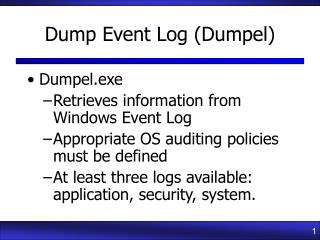
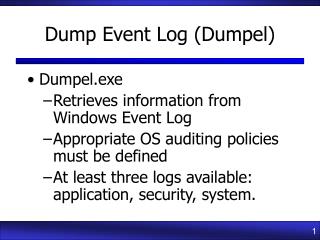
Dump Event Log (Dumpel) • Dumpel.exe • Retrieves information from Windows Event Log • Appropriate OS auditing policies must be defined • At least three logs available: application, security, system.
Dumpel (2) dumpel –l security –s \\server –c –d 1 –f sec.csv • Choose a log to retrieve (required) -l [security | application | system] • Choose delimiter (-c) -c = comma -t = tab default = whitespace • Choose number of days to retrieve -d NN where NN is an integer > 0 • Choose server and output file -s \\server -f filename.txt
Dumpel (3) • Limiting by Source (-m SOURCE) • LSASRV -l application -m LSASRV • Security -l security -m security • Retrieve specific information (-e NN) • Failed logins (-l security -m security -e 529) • Object access (-l security -m security -e 560) • Shutdown (-l security -m security -e 513) • Inverting the query (-r) • Retrieves everything EXCEPT what matches the limitations specified by other parameters.
SC (Service Control) • Single service C:\>sc \\server query service • All services C:\>sc \\server query • Running services C:\>sc \\server query state= • Stopped services C:\>sc \\server query state= inactive • Export to a text file C:\>sc \\server query > filename.txt
Reg C:\>reg REG Operation [Parameter List] Operation [ QUERY | ADD | DELETE | COPY | SAVE | LOAD | UNLOAD | RESTORE | COMPARE | EXPORT | IMPORT ] Return Code: (Except of REG COMPARE) 0 - Successful 1 - Failed For help on a specific operation type: REG Operation /?
Reg Query Operation • Reg operations add, change, save or display registry content • Type ‘reg operation /?’ for context-sensitive help • ‘Query’ operation outputs registry contents in text format and works on remote systems • Syntax: • REG QUERY [\Machine\]FullKey [/v ValueName | /ve] [/s]
Reg Query Examples • Query locally-installed software C:\>reg query HKLM\software • Query locally-installed software, including all subkeys C:\>reg query HKLM\software /s • Query hardware on a remote server C:\>reg query \\server\HKLM\hardware • Query user profiles on a remote server C:\>reg query \\server\HKU
Addusers • Addusers_x86 \\server /d filename.txt • Run as administrator • To change the delimiter, add /s:x, where x is the character used to separate the fields • Change /d to /d:u to put the output in Unicode • Can also create, modify, and delete accounts.
Importing Data into a Spreadsheet • To make the output easier to read: • Open empty sheet in Excel • Go to Data/Import External Data/Import Text File… • Select Delimited, then choose delimiter and ‘Treat Consecutive delimiters as one’ • Click Next, Finish, OK to finish