Setting the channel on your voting handset
20 likes | 132 Vues
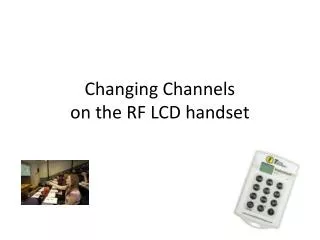
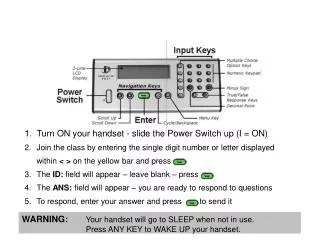
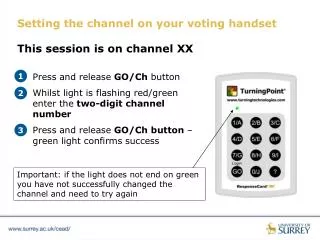
Learn how to set your voting handset to Channel XX effectively. First, press and release the GO/Ch button while the light is flashing red/green. Enter the designated two-digit channel number and press the GO/Ch button once more. A green light confirms a successful channel change. If the light does not turn green, you must try again. During the voting session, ensure the green polling open indicator is visible to cast your vote. Press a button firmly; the small light will turn green upon a successful vote.


Setting the channel on your voting handset
E N D
Presentation Transcript
Setting the channel on your voting handset This session is on channel XX • Press and release GO/Ch button • Whilst light is flashing red/greenenter the two-digit channel number • Press and release GO/Ch button –green light confirms success 1 2 3 Important: if the light does not end on green you have not successfully changed the channel and need to try again
3 2 Simulation only Using the voting handset 1 • You can only vote when the green polling open indicator is shown in the top-right of the screen • To vote, press one of the number/letter buttons firmly • The small light on your handset goes green on successful vote • For most questions, if you press more than one button only your last response counts 1 2 3 4