Download
1 / 5
50 likes | 175 Vues
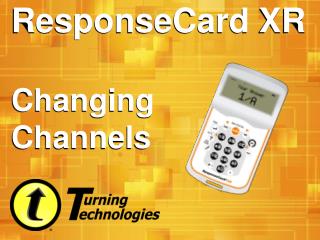
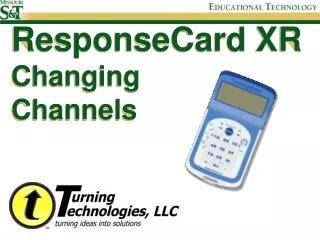
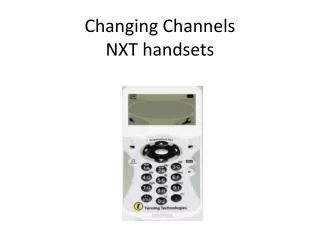
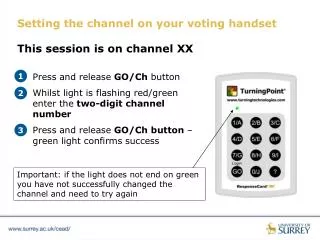
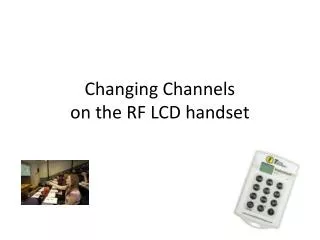
Changing channels on your RF LCD handset is a straightforward process. Begin by pressing the Channel (Ch) button located at the bottom left side of the handset. You'll notice the red and green lights flashing, indicating that you're in channel selection mode. The default channel is set to "41". To select a new channel, simply enter the desired two-digit channel number. Afterwards, press the Channel (Ch) button again; a green light will display if the channel change is successful. The new channel will now be visible in the LCD window.

E N D
How to change channel • Press the Channel (Ch) button at the bottom left hand side of the handset.
How to change channel • The red and green lights flash • The default channel is “41”
How to change channel • Enter the two digit channel number • Press the channel (Ch) button again • A green light displays when the channel change is successful
How to change channel • The new channel will now show in the LCD window