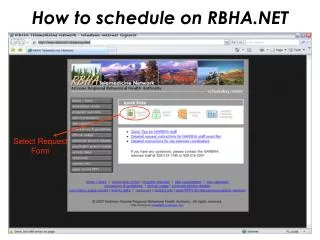
How to schedule on RBHA.NET
130 likes | 276 Vues
This guide provides clear instructions for scheduling video meetings using the RBHA.NET platform. Learn how to fill out the Request Video Meeting Form, including entering your full name, email, and desired room assignments. Ensure to start over if you encounter any issues during the entry process. You'll also discover how to handle multiple meeting dates, check site responses, and the importance of contacting NARBHA Telemed staff for last-minute changes. Follow these steps to streamline scheduling and improve your meeting coordination.


How to schedule on RBHA.NET
E N D
Presentation Transcript
How to schedule on RBHA.NET Select Request Form
Login Full name and NARBHA email
Request Video Meeting For meetings with people attending over video
Request Video Form * Means field is required Clinical: Doctor - Client Only NARBHA for NARBHA users Helps decide what room you are assigned If you would like a specific room, request here. If it takes more than 30 mins to enter all information and send request, it will not work. If you get side-tracked while entering information, start over to ensure your request goes through correctly.
Multiple Meeting Dates Click on “Multiple Meeting Dates” • Be sure pop-ups are • allowed • May take place of calendar if open • Only works if times • are the same for all • Meetings • mm/dd/yyyy will become light grey after • dates are added
Adding participants Site coordinators at each selected site will receive an email notification and will be prompted to 'accept' or 'decline' the request based on their video room availability. Email not sent to participant entered, only site coordinator. • Always have something • in the “Key Staff” box • Name of attendee • Department • Symbol
Request Non-Video To request a specific room, send email to Telemed@narbha.org letting us know. Multiple Dates available Decides what room you are placed in
Audio only / Conference Calls Enter all information for a non-video request along with Audio Only options Check to make audio only options available You will receive a different number for each participant to dial.
Checking responses You can check to see if sites have said they will be attending your meeting Via video by viewing your meetings. Enter date of the meeting you would like to check and hit “Search Start Date”
Checking Responses Click on title of meeting you would like to check
Late Scheduling WHEN YOU SCHEDULE OR CHANGE A MEETING WITHIN ONE BUSINESS DAY OF THE MEETING TIME, YOU MUST CALL NARBHA TELEMED STAFF TO CONFIRM THE MEETING. CHANGES MADE ONLY ON THIS WEBSITE, BUT NOT CALLED IN, ARE NOT GUARANTEED TO BE MADE! CALL THE TELEMED STAFF AT: 928-607-5385