How to Create a Bookbag List for Checking Out Library Items
Learn how to efficiently gather and check out items from your school library's online catalog. Start by clicking on the online catalog link and navigating to the Advanced Search. Input your desired items, change the library setting to "ALL," and select the ones you wish to add to your Bookbag by clicking "Keep." View your selections in the Bookbag and email the librarian at cf_lindy@cfalls.org with your pickup list and timing preferences. Simplify your library experience with this easy step-by-step guide!

How to Create a Bookbag List for Checking Out Library Items
E N D
Presentation Transcript
Library Catalog How to Make a Bookbag List of the Items to be gathered and checked out
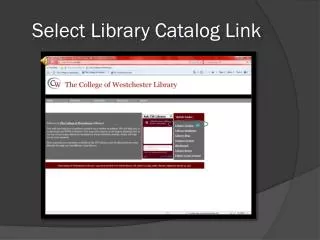
Click on CAT Click on CAT
Type in what you are looking for Change Library to ALL
Click on “Kept” to see the items in your Bookbag Click View Your Bookbag
Display All Locations Email the pickup list to the Librarian; cf_lindy@cfalls.org Let me know when you need the items by