Download
1 / 1
10 likes | 181 Vues
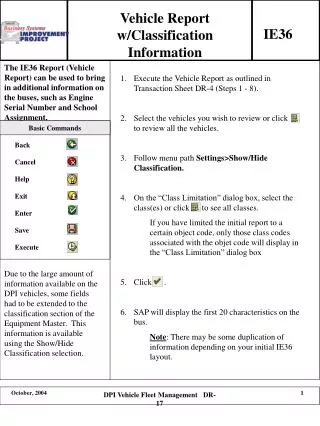
Follow the outlined steps to execute the Vehicle Report in SAP as per Transaction Sheet DR-4. Start by selecting the vehicles for review or choose to review all vehicles. Navigate to Settings > Show/Hide Classification to access the Class Limitation dialog box. Select specific classes or view all classes available. Note that the report may limit displayed class codes based on the initial object code. Due to the extensive data on DPI vehicles, some fields have been included in the Equipment Master classification. Utilize the Show/Hide Classification option for detailed insights.

E N D
Vehicle Report w/Classification Information IE36 1. Execute the Vehicle Report as outlined in Transaction Sheet DR-4 (Steps 1 - 8). 2. Select the vehicles you wish to review or click to review all the vehicles. 3. Follow menu path Settings>Show/Hide Classification. 4. On the “Class Limitation” dialog box, select the class(es) or click to see all classes. If you have limited the initial report to a certain object code, only those class codes associated with the objet code will display in the “Class Limitation” dialog box 5. Click . 6. SAP will display the first 20 characteristics on the bus. Note: There may be some duplication of information depending on your initial IE36 layout. Basic Commands Back Cancel Help Exit Enter Save Execute Due to the large amount of information available on the DPI vehicles, some fields had to be extended to the classification section of the Equipment Master. This information is available using the Show/Hide Classification selection. DPI Vehicle Fleet Management DR-17