Integrating MS Word with the Web: Creating Interactive Web Pages Easily
100 likes | 227 Vues
This guide explores how to integrate Microsoft Word with the web to create interactive and informative web pages. It covers essential aspects, such as converting Word documents into HTML format, utilizing templates through the Web Pages Wizard, and enhancing pages with graphics, videos, and sound. Readers will learn to organize web content effectively, ensure easy navigation, and apply themes for a professional look. Additionally, we'll discuss adding hyperlinks and obtaining permissions for using external media. Transform your Word documents into stunning websites effortlessly!


Integrating MS Word with the Web: Creating Interactive Web Pages Easily
E N D
Presentation Transcript
Integrating MS Word and the Web • The World Wide Web is composed of millions of web sites that are made of multiple linking pages. • These pages are called web pages. • The first and main page is called the homepage. • All pages link back to the homepage. • Other pages can include related material including: • Written Information (text) • Pictures • Videos • Sound • Web Forms • Online template (preset form) where visitors enter in specific data. • Surveys, Questionnaires, Credit Card information, etc.
Integrating MS Word and the Web • Web Pages should be: • Informative (Reliable, truthful material) • Interactive (Links, banner ads, etc.) • Consistent (Color, Format, Alignment) • Easy to Navigate (Links) • Web pages can be created using: • Notepad • MS Word • Various software programs • i.e. Dreamweaver
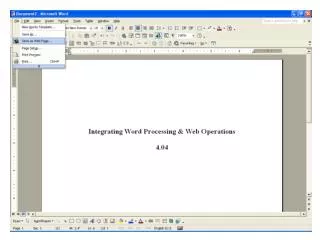
Integrating MS Word and the Web A finalized Word document can be converted to a web page. Go to File, Save as Web Page
Integrating MS Word and the Web A web page can also be created by going to: • Start, All Programs, New Office Document, Web Pages Wizard • The wizard is a step by step tutorial that allows a user to choose: • Pre-designed pages • Templates • Web page names/titles • Saving locations
Integrating MS Word and the Web • Word automatically creates a folder after a document has been converted to a web page. • The folder contains all files pertaining to the web page. • Graphics • Sound • Video
Integrating MS Word and the Web • Web pages use the HTML file format. • HTML makes a document readable in a browser (Internet Explorer). • Any document can be saved as a web page using HTML. • To make the document look more like a web page, a theme can be applied. • A theme adds: • Color schemes • Backgrounds • Bullets • Other design techniques.
Integrating MS Word and the Web Word also has a Web toolbar that can be used to custom create a web page. Search the web Stop and Refresh Show only web toolbar Address Back and Forward
Integrating MS Word and the Web Hyperlinks can be added to: • Link existing pages within a site together. • Link to outside web addresses (URLs). • URL = Uniform Resource Locator • Ex: www.yahoo.com www.google.com • Identified by underline. • Changes color when clicked on.
Integrating MS Word and the Web • Graphics that can be added: • Clip Art • Word Art • Digital camera pictures • Scanned pictures • Pictures from the Internet • Be sure to cite the URL where picture came from. • Get owner’s permission before the web page is published and uploaded. • Video, sound, and animation can also be added to web pages.