Mastering Strings in Excel: Essential Functions and Manipulation Techniques
Explore the fundamentals of strings within Excel, where a string is defined as a sequence of characters, including letters, numbers, and spaces. Learn how to properly format strings in formulas using double quotes, and discover vital functions like TRIM, CLEAN, UPPER, and LOWER for effective string manipulation. Understand concatenation, substring extraction, and the use of functions like REPLACE and SUBSTITUTE. This guide also addresses common challenges and offers step-by-step strategies to simplify string manipulation, making your Excel experience more efficient and effective.


Mastering Strings in Excel: Essential Functions and Manipulation Techniques
E N D
Presentation Transcript
Excel Strings 10 April 2014
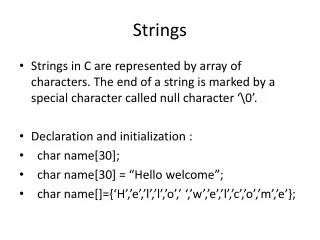
What is a String? • Basically, a sequence of characters • Character? • Letter • Or number • Or even blank space
What is a String? • Anything can be interpreted as a string regardless of format • In an expression (formula) string must be inside double quotes! • “this is a string” and this is not a string. • Remember to beware cut and paste
We’ve already used strings • =IFERROR(A1,”Oops!”) • Concatenate • Now we’re going to learn to manipulate them
A Few Simple Functions • TRIM: eliminate extra blank space • CLEAN: eliminate non-printing blanks • UPPER: force to upper case • LOWER: force to lower case
Trim • Remember “a ” and “a” aren’t the same • Trim gets rid of • leading blanks • trailing blanks • extra blanks in middle • “ a ” becomes “a” • Very useful when determining if strings equal • Or just eliminating extra whitespace
Clean • Does the same thing for non-printable characters • Need to use it when you get data from the web • Spaces are printable characters • NEED TO USE BOTH • ORDER DOESN’T MATTER
Converting • UPPER – Changes to UPPERCASE • “cookie” becomes “COOKIE” • lower – Changes to lowercase • “SHouT” becomes “shout” • Useful for clean up • Not needed for comparing strings: Excel = is case insensitive • Can be useful in FINDs
Concatenating (formally) • Huh? • It means combining two or more things into one thing • & Anything can be concatenated • “awe” & “some” = “awesome” • Whitespace only matters inside quotes • “a”&“b” same as “a” & “b” • “a ” & “b” NOT the same as “a” & “b”
CONCATENATE Function Also a function called concatenate Same thing as & Can use either Same as SUM or +
Changing Strings • Taking strings apart • Replacing parts of strings
Substring • A substring is also a String • A substring is a part of another string • “cake” is a substring of “birthday cake” • so are “day”, “thd”, and “y cake” • “they” is not, neither is “hello” or “dude”
Referencing characters Each character has a position Note that it starts at 1, not 0
Selecting substrings LEFT – leftmost characters RIGHT – rightmost characters MID – characters in the middle
Length: LEN Finds the length of a String One of the most important functions Relationship between length and position?
How to find functions • Click the function button • Select Text • They actually mean String, but whatever • List of handy functions and other goodies
Searching • Find – case sensitive search • Cake ≠ cake • Search – non-case sensitive search • Cake = cake
Searching for a full word • Just the word will find too many instances • Searching for blanks on both sides loses start and end • How to solve? • Pad the “within” string with blanks before searching
REPLACE (position) • REPLACE • Useful when you know the position of what you want to replace, i.e. the first four characters of a String • You can find position and length • By nature not case sensitive
SUBSTITUTE (string) • SUBSTITUTE • This functions finds and replaces all occurrences of a substring with another String • Allows you to select which instance to substitute • For example, if your String = “the cake isn’t ready” and you substitute “is” for “isn’t” the result is “the cake is ready” • CASE SENSITIVE • Does not return an error if not found
Removing Pieces • If I replace with the null string…
PROPER • Proper – Every word starts with a capital letter Does NOT abide by title rules • CAREFUL! “it’s” will become “It’S” • How to fix? • Find the ‘ • Fix the next character
Finding the First Word • Everything up to the first blank • Find the first blank • That position is the length of the substring THROUGH the blank • First word is the RIGHT substring 1 character less
Finding the LAST Word • This is a lot harder • Find the last blank • Find the number of blanks • Remove all blanks • Difference of the length of the string with blanks and without blanks = number of blanks • Change the last blank to a known character • Find the character • Take the LEFT characters from there
Why is String Manipulation hard? • Lots of little steps • Nested functions are confusing • Use intermediate columns • Or even complete extra pages