Project Management Resolve Work
Project Management - Resolve Work CRM<br><br>Manage Projects end-to-end with smart task assignments, deadline tracking & team collaboration. Keep everyone aligned and deliver on time.<br><br>Visit Our Website : https://resolve.work/features/projects/<br><br>Key Features:<br>Comprehensive project dashboard & overview<br>Task creation, assignment & prioritization<br>Milestone tracking & deadline management<br>Team workload distribution & resource planning<br>Progress monitoring with real-time updates<br>Client collaboration through customer portal<br>Automated notifications & reminders<br>

Project Management Resolve Work
E N D
Presentation Transcript
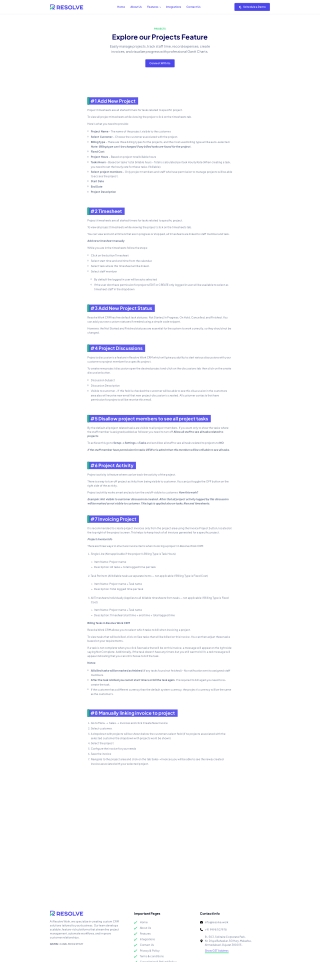
Home About Us Features Integrations Contact Us Schedule a Demo PROJECTS Explore our Projects Feature Easily manage projects, track sta? time, record expenses, create invoices, and visualize progress with professional Gantt Charts. Connect With Us #1 Add New Project Project timesheets are all started timers for tasks related to specific project. To view all project timesheets while viewing the project click on the timesheets tab. Here’s what you need to provide: Project Name – The name of the project, visible to the customer. Select Customer – Choose the customer associated with the project. Billing Type – There are three billing types for the projects, and the most used billing type will be auto-selected. Note: Billing type can’t be changed if any billed tasks are found for the project. Fixed Cost Project Hours – Based on project total billable hours Tasks Hours – Based on tasks' total billable hours – Total is calculated per task Hourly Rate (When creating a task, you need to set the hourly rate for these tasks if billable). Select project members – Only project members and sta? who have permission to manage projects will be able to access the project. Start Date End Date Project Description #2 Timesheet Project timesheets are all started timers for tasks related to specific project. To view all project timesheets while viewing the project click on the timesheets tab. You can view and sort all timers that are in progress or stopped, all timesheets are linked to sta? member and task. Add new timesheet manually While you are in the timesheets follow the steps: Click on the button Timesheet Select start time and end time from the calendar. Select task where this timesheet will be linked. Select sta? member By default the logged in user will be auto selected If the user dont have permission for projects EDIT or CREATE only logged in user will be available to select as timesheet sta? in the dropdown #3 Add New Project Status Resolve Work CRM has five default task statuses: Not Started, In Progress, On Hold, Cancelled, and Finished. You can add your own custom statuses if needed using a simple code snippet. However, the Not Started and Finished statuses are essential for the system to work correctly, so they should not be changed. #4 Project Discussions Projects discussion is a feature in Resolve Work CRM which will give you ability to start various discussions with your customer or project member for a specific project. To create new project discussion open the desired project and click on the discussions tab then click on the create discussion button. Discussion Subject Discussion Description Visible to customer – If this field is checked the customer will be able to see this disucussion in the customers area also will receive new email that new project discussion is created. All customer contacts that have permission for projects will be receive this email. #5 Disallow project members to see all project tasks By the default all project related tasks are visible to all project members. If you want only to show the tasks where the sta? member is assigned/added as follower you need to turn o? Allow all sta? to see all tasks related to projects To achieve this go to Setup->Settings->Tasks and set Allow all sta? to see all tasks related to projects to NO If the sta? member have permission for tasks VIEW or is admin then this member will be still able to see all tasks. #6 Project Activity Project activity is feature where can be track the activity of the project. There is a way to turn o? project activity from being visible to customer. You can just toggle the OFF button on the right side of the activity. Project actvitity works smart and auto turn the on/o? visible to customer. How this work? Example: Not visible to customer discussion is created. After that all project activity logged by this discussion will be marked as not visible to customer. This logic is applied also on tasks,files and timesheets. #7 Invoicing Project It is recommended to create project invoices only from the project area using the Invoice Project button, located at the top right of the project screen. This helps to keep track of all invoices generated for a specific project. Project Invoice Info There are three ways to structure invoice items when invoicing a project in Resolve Work CRM: ?. Single Line (Not applicable if the project’s Billing Type is Task Hours) Item Name: Project name Description: All tasks + total logged time per task ?. Task Per Item (All billable tasks as separate items — not applicable if Billing Type is Fixed Cost) Item Name: Project name + Task name Description: Total logged time per task ?. All Timesheets Individually (Applies to all billable timesheets from tasks — not applicable if Billing Type is Fixed Cost) Item Name: Project name + Task name Description: Timesheet start time + end time + total logged time Billing Tasks in Resolve Work CRM Resolve Work CRM allows you to select which tasks to bill when invoicing a project. To view tasks that will be billed, click on See tasks that will be billed on this invoice. You can then adjust these tasks based on your requirements. If a task is not complete when you click See tasks that will be on this invoice, a message will appear on the right side saying Not Complete. Additionally, if the task doesn’t have any timers but you still want to bill it, a red message will appear indicating that you can still choose to bill the task. Notes: All billed tasks will be marked as finished (If any tasks found not finished) – No notification sent to assigned sta? members. After the task is billed you cannot start timers or bill the task again. If is required to bill again you need to re- create the task. If the customer has a di?erent currency than the default system currency, the project’s currency will be the same as the customer’s. #8 Manually linking invoice to project ?. Go to Menu -> Sales -> Invoices and click Create New Invoice ?. Select customer. ?. A dropdown with projects will be shown below the customers select field (if no projects associated with the selected customer the dropdown with projects wont be shown) ?. Select the project ?. Configure the invoice for your needs ?. Save the invoice ?. Navigate to the project area and click on the tab Sales->Invoices you will be able to see the newly created invoice associated with your selected project. Important Pages Contact Info At Resolve Work, we specialize in creating custom CRM solutions tailored to your business. Our team develops scalable, feature-rich platforms that streamline project management, automate workflows, and improve customer relationships. Home info@resolve.work About Us +91 9998 707978 Features B- 503, Solitaire Corporate Park, Nr. Divya Bahaskar, SG Hwy, Makarba, Ahmedabad, Gujarat 380015 . Integrations GSTIN: 24ABLFR1022M1Z7 Contact Us Privacy & Policy Show GST Address Terms & conditions Cancellation& Refund Policy
Cancellation & Refund Policy Home About Us Features Integrations Contact Us Schedule a Demo Copyright © 2026 . All Rights Reserved.