### Understanding the UNIX File System: Files, Permissions, and I/O Redirection ###
This guide provides an overview of the UNIX file system, highlighting the concept that almost everything is treated as a file, including normal files, directories, hardware, sockets, and pipes. It explains file permissions, ownership, and the importance of user and group IDs. The document also covers commands that help users identify their own identities and those of others, along with how to change permissions using the chmod command. Additionally, it delves into input/output redirection and piping, illustrating how to effectively connect programs to manipulate data. ###

### Understanding the UNIX File System: Files, Permissions, and I/O Redirection ###
E N D
Presentation Transcript
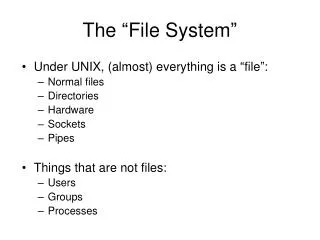
The “File System” • Under UNIX, (almost) everything is a “file”: • Normal files • Directories • Hardware • Sockets • Pipes • Things that are not files: • Users • Groups • Processes
File Permissions • Every file has three access levels: • user (the user owner of the file) • group (the group owner of the file) • other (everyone else) • At each level, there are three access types: • read (looking at the contents) • write (altering the contents) • execute (executing the contents)
Ownership • Files have two owners • Every file has exactly one user owner • Every file has exactly one group owner • Everyone is a user • Users are in at least one group • Processes have owners, too (known as an “id”) • Every process has exactly one user id • Every process has at least on group id • Users and groups are really just numbers with names • Every username is mapped to a single numeric “uid” • Every groupname is mapped to a single numeric “gid”
Who am I? • Commands that tell you who you are: • whoamidisplays your username • iddisplays your username and groups • Commands that tell you who others are: • finger [<name>]displays info for <name> • id [<username>]displays info for <username> • Commands that change who you are: • su <username>“switch user” to <username> • login login as a different user
Changing Permissions • The “change mode” command: chmod <level><op><permissions>[,…] <filename> <level> string of: u, g, o, a (user, group, other, all) <op> one of +, -, = (gets, loses, equals) <permissions> string of: r, w, x, s, t, u, g, o (read, write, execute, set-id, text, same as user, same as group, same as other), • Examples: chmod u+rwx,go-w foobar chmod g=u,+t temp/ chmod u=rwx,g=rwxs,o= shared/
What is input/output redirection? • Normally, a program’s standard output is displayed on user’s terminal, and its standard input comes from the keyboard. • Redirecting the output of a program means asking the shell to put the program’s output (stdout [C++’s cout]) into a file. • Redirecting the input of a program means asking the shell to feed a file as the program’s standard input (stdin [C++’s cin]). • Note: redirection works with files.
How to redirect program’s output? • To redirect just the standard output:<program> > <FILE> • Example: ls –l > root-folders
> vs. >> • Both > and >> will create the output file, if it doesn’t already exist • If the file does exist, then: • Using > to redirect output will overwrite the output file: • ls > newlisting • printenv > my_environment • Using >> to redirect output will append to the output file • cat ch1 ch2 ch3 > book • cat ch4 ch5 ch6 >> book
Why redirect program’s input? • To run the program repeatedly with the same (or similar input) • Having the program read from standard input may make the program simpler to write.
How to redirect program’s input? • Simple!<program> < <FILE> • Examplesort < my_grades.txthead < really_long_book.txt
Piping • Piping is connecting programs together by using the output of one program as the input to the next. • Syntax:<program1> | <program2> | … | <programN> • A simple example (view a sorted file-listing a page at a time):ls | sort | less • Note: piping deals with the input/output of programs (that is, stdin, stdout, stderr)
Why piping? • Because “the whole is bigger than the sum of its parts. • By combining Unix utilities in a pipeline, you can build tools “on-the-fly” as you need them.
Piping examples • How many .c files are in this directory?ls *.c | wc –l • What files were modified most recently?ls –t | head • What processes am I running?ps auxw | grep <mylogin> • Redirection and piping used together • Sort –r < root-folders | more