
Uploaded by
shae
3 SLIDES
122 VUES
30LIKES
Interactive Audio Configuration Guide for Improved Virtual Communication Experience
DESCRIPTION
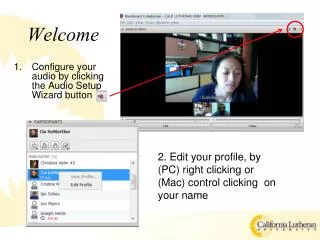
Easily configure your audio settings by clicking the Audio Setup Wizard button. Edit your profile with a simple right-click or control-click on your name. This guide explains how to use the Talk and Video buttons effectively to enhance your virtual communication. Remember to raise your hand when needed!
Download
1 / 3
Télécharger la présentation 
Interactive Audio Configuration Guide for Improved Virtual Communication Experience
An Image/Link below is provided (as is) to download presentation
Download Policy: Content on the Website is provided to you AS IS for your information and personal use and may not be sold / licensed / shared on other websites without getting consent from its author.
Content is provided to you AS IS for your information and personal use only.
Download presentation by click this link.
While downloading, if for some reason you are not able to download a presentation, the publisher may have deleted the file from their server.
During download, if you can't get a presentation, the file might be deleted by the publisher.
E N D
Presentation Transcript
Welcome • Configure your audio by clicking the Audio Setup Wizard button 2. Edit your profile, by (PC) right clicking or (Mac) control clicking on your name
How This Works • To speak, press the (1)Talk button, to show your webcam, press the (2)Video button • Turn off your Talk and Video when you are done!

















More Related