
Intro to JavaFX: GUIs and Graphics
E N D
Presentation Transcript
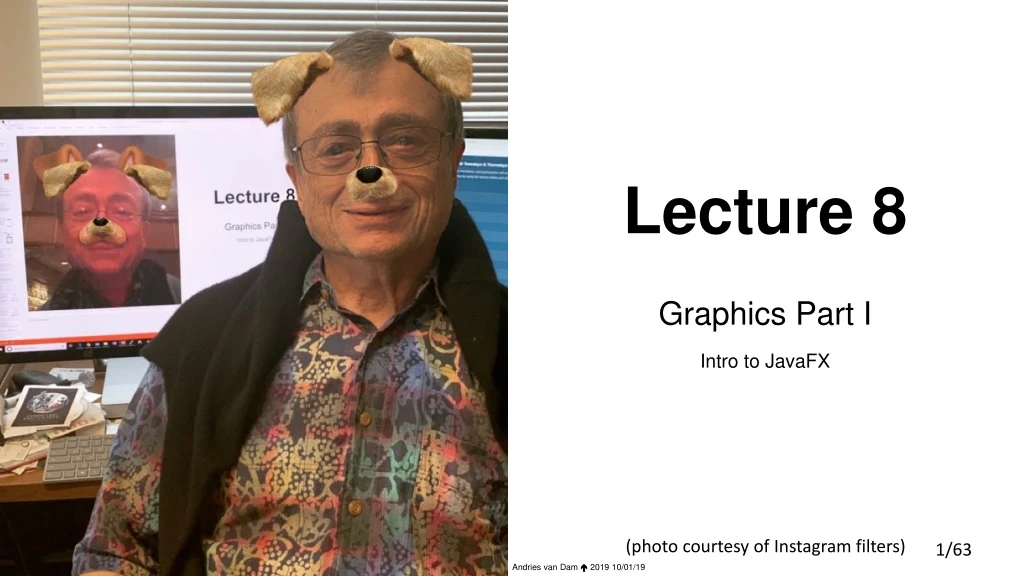
Lecture 8 Graphics Part I Intro to JavaFX (photo courtesy of Instagram filters)
This Lecture • GUIs and JavaFX • JavaFX Scene Graph Hierarchy • Aside:VBox • Example: ColorChanger • Event Handling • Private inner classes • Random number generation • javafx.scene.paint.Colors • Logical vs. Graphical Containment with JavaFX
Pixels and Coordinate System X (0, 0) Y • Screen is a grid of pixels (tiny squares, each with RGB components) • Cartesian plane with: • origin in upper-left corner • x-axis increasing left to right • y-axis increasing top to bottom • corresponds to English writing order • Each graphical element is positioned at specific pixel : pixels Former HTA Sam Squires!
What is JavaFX? • Usually don’t want to program at the pixel level – far too tedious! • JavaFX is a set of graphics and media packages enabling developers to design, create, and test powerful graphical applications for desktop, web, and mobile devices • JavaFX is an API (Application Programming Interface) to a graphics and media library: a collection of useful classes and interfaces and their methods (with suitable documentation) – no internals accessible!
Creating Applications from Scratch • Until now, TAs took care of graphical components for you • our support code defined the relevant classes • From now on, you are in charge of this! • JavaFX is quite powerfulbut can be a bit tricky to wrap your head around because of the size of the JavaFX library • not to fear, all JavaFX packages, classes, and method descriptions can be found in the JavaFX guideon our website!
Graphical User Interface (GUIs) • GUIs provide user- controlled (i.e., graphical) way to send messages to a system of objects, typically your app • Use JavaFX to create your own GUIs throughout the semester
Components of JavaFX application • Stage • location (or “window”) where all graphic elements will be displayed • Scene • container for all UI elements to be displayed on a stage • scene must be on a stage to be visible • Scene Graph • family tree of graphical elements • Nodes • all elements of the Scene Graph • graphical representation called a UI element, widget or control (synonyms)
Creating GUIs With JavaFX: Stage (1/2) public class App extends Application { //mainline provided by TAs elided @Override public void start() { stage.show(); } } • App class for JavaFX application extends imported abstractclass javafx.application.Application • From now on, begin every project by implementing Application’s abstractstart() • start() is called automatically by JavaFX to launch program • Java automatically creates a Stageusing the imported javafx.stage.Stage class, which is passed into start() • when start() calls stage’s show(), stagebecomes a window for the application Stage stage MyStage
Creating GUIs With JavaFX: Scene (2/2) • In order for our application to provide content for what to show on the stage, must first set (specify) a scene before showing it on (in) the stage • javafx.scene.Scene is the top-level container for all UI elements • first instantiate Scene within App class’startmethod • then pass that Sceneinto Stage’s setScene(Scenescene) method to set the scene! • In CS15, only specify 1 Scene – though JavaFX does permit creation of applications with multiple Scenes • ex: A gaming application where you could select to play either DoodleJump, Tetris or Pacman from the main screen might utilize multiple Scenes - one for each subgame • So what exactly is a javafx.scene.Scene ? Process shown in a few slides!
JavaFX Scene Graph Hierarchy (1/3) • In JavaFX, contents of the Scene (UI elements) are represented as a hierarchical tree, known as the Scene Graph • you are familiar with some other hierarchies already - containment and inheritance containment hierarchy directed graph inheritance hierarchy
JavaFX Scene Graph Hierarchy: Nodes (2/3) • Think of the Scene Graph as a family tree of visual elements • javafx.scene.Node is the abstract superclass for all UI elements that can be added to the Scene, such as a Button or a Label • all UI elements are concrete subclasses of Node (Button, Label, Pane, etc.) • Each UI component that is added to the Scene Graph as a Nodegets displayed graphically Node Node Node Node Node Node
JavaFX Scene Graph Hierarchy: Node Properties (3/3) root Node This node has two children • Each Nodecan have multiple children but at most one parent • child Nodes are almost always graphically contained in their parent Node • more on graphical containment later! • The Nodeat the top of the Scene Graph is called the rootNode • the root Nodehas no parent Node Node Node Node Node
The root of the Scene • Root Nodewill always be a javafx.scene.layout.Paneor one of Pane’s subclasses. • Different Panes have different built-in layout capabilities to allow easy positioning of UI elements - see inheritance tree below for flavors • For now, use a VBox as the root of the Scene–more on VBoxlater
Constructing the Scene Graph (1/3) • Instantiate root Node public class App extends Application { @Override public void start(Stage stage) { //code to populate Scene Graph VBox root = new VBox(); Scene scene = new Scene(root); stage.setScene(scene); stage.show(); } }
Constructing the Scene Graph (2/3) • Instantiate root Node • Pass it into Scene constructor to construct Scene Graph • Scene Graph starts off as a single root Node with no children • the root is simply a container, without graphical shape /*within top-level pp class*/ public void start (Stage stage) { VBox root = new VBox(); Scene scene = new Scene(root); } public class App extends Application { @Override public void start(Stage stage) { //code to populate Scene Graph VBox root = new VBox(); Scene scene = new Scene(root); stage.setScene(scene); stage.show(); } }
Constructing the Scene Graph (3/3) • Once we setScene() andshow() on Stage, we begin populating the Scene Graph public class App extends Application { @Override public void start(Stage stage) { //code to populate Scene Graph VBox root = new VBox(); Scene scene = new Scene(root); stage.setScene(scene); stage.show(); } }
Adding UI Elements to the Scene (1/2) • How to add more Nodes to the Scene Graph? • Adding UI elements as children of root Node adds them to Scene and makes them appear on Stage! • Calling getChildren() method on a Node returns a listof that Node’s children • by adding/removing Nodes from a Node’s listof children, we can add/remove Nodes from the Scene Graph!
Adding UI Elements to the Scene (2/2) • getChildren() returns a List of child Nodes • in example on right, root.getChildren() returns a List holding three Buttons (assuming we created them previously - next slide) • To add a Nodeto this list of children, call add(Node node) on that returned List! • can also use addAll(Nodes… node1, node2, …) which takes in any number of Nodes • allowing any number of arguments is a new capability of parameter lists • To remove a Nodefrom this list of children, call remove(Node node)on that returned List
root.getChildren().add(…) in action • Add 3 Buttons to the Sceneby adding them as children of the root Node (no children before this) • First create buttons • Then add buttons to Scene Graph Order matters - order buttons added effects order displayed (b1, b2, b3) vs. (b2, b1, b3) /* Within App class */ @Override public void start(Stage stage) { //code for setting root, stage, scene elided Button b1 = new Button(“Button 1”); Button b2 = new Button(“Button 2”); Button b3 = new Button(“Button 3”); root.getChildren().addAll(b1,b2,b3); } Note the default button selection in blue Remember double dot method call shorthand? root.getChildren() returns a List of root’s children. Rather than storing that returned List in a variable and calling add(…)on that variable, we can simplify our code by calling add(…) directly on the returned List of children!
Removing UI Elements from the Scene (2/2) • Similarly, remove a UI element by removing it from the list of its parent’s children. • note: order of children doesn’t matter when removing elements since you specify their variable names • Let’s remove third Button* /* Within App class */ @Override public void start(Stage stage) { //code for setting root, stage, scene elided Button b1 = new Button(“Button 1”); Button b2 = new Button(“Button 2”); Button b3 = new Button(“Button 3”); root.getChildren().addAll(b1,b2,b3); root.getChildren().remove(b3); } *Note: not a typical design choice to add and then remove a Node in the same code block!
Populating the Scene Graph (1/3) • What if we want to make more complex applications? • Add specialized layout containers, called Panes • Add another Paneas child of root Node, then add more UI elements as child Nodes of this Pane • This will continue to populate the scene graph!
Populating the Scene Graph (2/3) • First, instantiate another VBoxand add it as child of root Node • Note: VBox is a pure container without graphical shape /* Within App class */ @Override public void start(Stage stage) { //code for setting scene elided Button b1 = new Button(); //nolabel Button b2 = new Button(); //nolabel root.getChildren().addAll(b1,b2); VBox holder = new VBox(); root.getChildren().add(holder); }
Populating the Scene Graph (3/3) • Next, add Label to Sceneas child of new VBox /* Within App class */ @Override public void start(Stage stage) { //code for setting scene elided Button b1 = new Button(); Button b2 = new Button(); root.getChildren().addAll(b1,b2); VBox holder = new VBox(); root.getChildren().add(holder); } Label text = new Label( “I live in the VBox!”); holder.getChildren().add(text);
Removing a Node with children (1/3) • Removing a Nodewith no children simply removes that Node… • root.getChildren().remove(b2);to remove second Button
Removing a Nodewith children (2/3) • Note that removing a Node with no children simply removes that Node… • root.getChildren().remove(b2); to remove second Button • Removing a Nodewith children removes all of its children as well! • root.getChildren().remove(holder); makes both VBox and Label disappear
Removing a Nodewith children (3/3) • Note that removing a Node with no children simply removes that Node… • root.getChildren().remove(b2); to remove second Button • Removing a Nodewith children removes all of its children as well! • root.getChildren().remove(holder); makes both VBoxand its Label disappear
TopHat Question Which of the following correctly would next remove removeLabel from the VBoxholder? root.remove(removeLabel); holder.remove(removeLabel); root.getChildren.remove(removeLabel); holder.getChildren().remove(removeLabel); Given this code: public void start(Stage stage) { //code for setting scene elided //parallel code for setting up root elided Button b1 = new Button(); Button b2 = new Button(); root.getChildren().addAll(b1,b2); VBox holder = new VBox(); root.getChildren().add(holder); Label removeLabel = new Label(“remove me!”); holder.getChildren().add(removeLabel); }
VBoxlayout pane (1/5) • So what exactly is a VBox? • VBoxlayout Pane creates an easy way for arranging a series of children in a single vertical column • We can customize vertical spacing between children using VBox’ssetSpacing(double) method • the larger the double passed in, the more space between the child UI elements
VBoxlayout pane (2/5) • Can also set positioning of entire vertical column of children • Default positioning for the vertical column is in TOP_LEFT of VBox (Top Vertically, Left Horizontally) • can change Vertical/Horizontal positioning of column using VBox’ssetAlignment(Pos position)method, passing in a javafx.geometry.Posconstant —javafx.geometry.Pos is a class of enums, or fixed set of values, to describe vertical and horizontal positioning. Use these values just like a constants class that you would write yourself! • Pos options are in the form Pos.<vertical position>_<horizontal position> • e.g. Pos.BOTTOM_RIGHT represents positioning on the bottom vertically, right horizontally • full list of Posconstants can be found here Why ALL_CAPS notation ? It is a “symbolic constant” with pre-defined meaning.
VBoxlayout pane (3/5) • The following code produces the example on the right: VBox root = new VBox(); Button b1 = new Button(“Top”); Button b2 = new Button(“Middle”); Button b3 = new Button(“Bottom”); root.getChildren().addAll(b1,b2,b3); width, height Scene scene = new Scene(root, 200, 200); stage.setTitle("Sample VBox"); stage.setScene(scene); stage.show(); Overloaded Scene constructor with three parameters: other Scene constructors have different parameter lists.
VBoxlayout pane (4/5) • Adding spacing between children VBox root = new VBox(); Button b1 = new Button(“Top”); Button b2 = new Button(“Middle”); Button b3 = new Button(“Bottom”); root.getChildren().addAll(b1,b2,b3); root.setSpacing(8); //code for setting the Scene elided
VBoxlayout pane (5/5) • Setting alignment property to configure children in TOP (vertically) CENTER (horizontally) of the VBox VBox root = new VBox(); Button b1 = new Button(“Top”); Button b2 = new Button(“Middle”); Button b3 = new Button(“Bottom”); root.getChildren().addAll(b1,b2,b3); root.setSpacing(8); root.setAlignment(Pos.TOP_CENTER); //code for setting the Scene elided
CS15 PaneOrganizer Class (1/2) • Until now, all code dealing with the Scenehas been inside Application’s startmethod; adding more nodes will clutter it up… • Write a PaneOrganizer class where all graphical application logic will live – an example of “delegation” pattern • Delegation removes application-dependent code from Appclass, which only creates scene and instantiates a PaneOrganizer– another example of “divide et impera” • PaneOrganizer will instantiate root Pane, and provide a public getRoot() method that returns this root • Appclass can now access root Panethrough PaneOrganizer’s public getRoot()method and pass root into Sceneconstructor • We’ll do this together soon!
CS15 PaneOrganizer Class (2/2) Pattern • Appclassinstantiates a PaneOrganizer, which creates root • Appclass passes return value from getRoot()to Sceneconstructor, so Scenehas a root • Top-level PaneOrganizer class instantiates JavaFX UI components (Button,Label,Pane…) • These UI components are added to rootPane(and therefore to the Scene, indirectly) using root.getChildren().add(...); orroot.getChildren().addAll(...);
Our First JavaFX Application: ColorChanger Stage • Spec: App that contains text reading “CS15 Rocks!” and a Buttonthat randomly changes text’s color with every click • Useful classes: Stage, Scene, VBox, Label, Button, EventHandler Label Pane (e.g., Vbox) Scene Button
Process: ColorChanger Stage • Create Appclass that extends javafx.application.Application and implements start(where you set Scene) – the standard pattern • Create PaneOrganizer class that instantiates root Pane and provides public getRoot()method to return the Pane. In PaneOrganizer, instantiate a Labeland Buttonand add them as children of root Pane • Set up a custom EventHandlerthat changes Label’s color each time Buttonis clicked,and register Buttonwith this new ClickHandler Label Pane (e.g., Vbox) Scene Button
ColorChanger: App class (1/3) • To implement start: • Instantiate a PaneOrganizerand store it in the local variable organizer public class App extends Application { @Override public void start(Stage stage) { PaneOrganizer organizer = new PaneOrganizer(); /*write our PaneOrganizer class later, where we will instantiate the root Pane */ } }
ColorChanger: App class (2/3) • To implement start: • Instantiate a PaneOrganizerand store it in the local variable organizer • Instantiate a new Scene, passing in: • rootPane, accessed through organizer’s public getRoot() • along with desired width and heightof Scene • Set the Scene, title the Stage, and show the Stage! public class App extends Application { @Override public void start(Stage stage) { PaneOrganizer organizer = new PaneOrganizer(); /*write our PaneOrganizer class later, where we will instantiate the root Pane */ Scene scene = new Scene(organizer.getRoot(),80,80); stage.set(scene); stage.setTitle(“Color Changer!”); stage.show(); } } root width height
ColorChanger: App class (3/3) • To implement start: • Instantiate a PaneOrganizerand store it in the local variable organizer • Instantiate a new Scene,passing in: • the root Pane, which is accessed through organizer public getRoot()method • along with desired width and height of Scene • Set the Scene, title the Stage, and show the Stage public class App extends Application { @Override public void start(Stage stage) { PaneOrganizer organizer = new PaneOrganizer(); /*write our PaneOrganizer class later, where we will instantiate the root Pane*/ Scene scene = new Scene(organizer.getRoot(),80,80); stage.setScene(scene); stage.setTitle(“Color Changer!”); stage.show(); } }
Process: ColorChanger Stage • Create App class that extends javafx.application.Application and implements start (where you set Scene!) • Create PaneOrganizer class that instantiates root Paneand provides public getRoot()method to return the Pane. In PaneOrganizer, instantiate a Labeland Buttonand add them as children of root Pane • Set up a custom EventHandlerthat changes Label’s color each time Button is clicked,and register Buttonwith this new ClickHandler Label Pane (e.g.,Vbox) Scene Button
ColorChanger: Our PaneOrganizerClass (1/4) public class PaneOrganizer { private VBox _root; private Label _label; public PaneOrganizer() { _root = new VBox(); _label = new Label(“CS15 Rocks!”); Button btn = new Button(“Random Color”); _root.getChildren().addAll(_label,btn); _root.setSpacing(8); btn.setOnAction(new ClickHandler()); } public VBoxgetRoot() return _root; } } • To write PaneOrganizerclass: • Instantiate root VBoxand store it in instance variable _root
ColorChanger: Our PaneOrganizerClass (2/4) public class PaneOrganizer { private VBox _root; private Label _label; public PaneOrganizer() { _root = new VBox(); _label = new Label(“CS15 Rocks!”); Button btn = new Button(“Random Color”);tChildren().addAll(_label,btn); _root.setSpacing(8); btn.setOnAction(new ClickHandler()); } public VBoxgetRoot() { return _root; } } • To write PaneOrganizerclass: • Instantiate root VBoxand store it in instance variable _root • Create a public getRoot()method that returns _root • reminder: this makes root Paneaccessible from within App’s start for new Scene(root)
ColorChanger: Our PaneOrganizerClass (3/4) public class PaneOrganizer { private VBox _root; private Label _label; public PaneOrganizer() { _root = new VBox(); _label = new Label(“CS15 Rocks!”); Button btn = new Button(“Random Color”);andler()); } public VBox getRoot() { return _root; } } • To write PaneOrganizerclass: • Instantiate Labeland Button, passing in Stringrepresentations of text we want displayed • _labelis an instance variable because need to access it elsewhere in P.O. to change its color • btnis a local variablebecause only need to access it from within constructor • Add Label and Butt on as children of root • root.setSpacing(8) is optional but creates a nice vertical distance between Label and Button
ColorChanger: Our PaneOrganizerClass (4/4) public class PaneOrganizer { private VBox _root; private Label _label; public PaneOrganizer() { _root = new VBox(); _label = new Label(“CS15 Rocks!”); Button btn = new Button(“Random Color”); _root.getChildren().addAll( _label,btn); _root.setSpacing(8);btn.setOnAc } public VBoxgetRoot() { return _root; } } • To write PaneOrganizerclass: • Instantiate Label and Button, passing in String representations of text we want displayed • _label is an instance variable because need to access it elsewhere in P.O. to change its color • btn is a local variablebecause only need to access it from within constructor • Add Labeland Buttonas children of root • root.setSpacing(8)is optional but creates a nice vertical distance between LabelandButton
Process: ColorChanger Stage • Create App class that extends javafx.application.Application and implements start (where you set Scene!) • Create PaneOrganizer class that instantiates root Paneand provides public getRoot()method to return the Pane. In PaneOrganizer, instantiate a Labeland Buttonand add them as children of root Pane • Set up a custom EventHandlerthat changes Label’s color each time Buttonis clicked, and register Button with this new ClickHandler Label Pane (eg. Vbox) Scene Button
Responding to User Input • Need a way to respond to stimulus of Buttonbeing clicked • We refer to this as Event Handling • a source (Node), such as aButton, generates an Event (such as a mouse click) and notifies all registered EventHandler objects • EventHandler is an interface, so all classes that implement EventHandler must implement handle(Event event) method, which defines response to event • note that handle(Event event) is called by JavaFX, not the programmer
EventHandlers (1/3) • Buttonclick causes JavaFX to generate a javafx.event.ActionEvent • ActionEventis only one of many JavaFX EventTypes that are subclasses of Eventclass • Classes that implement EventHandler interface can polymorphically handle any subclass of Event • when a class implements EventHandlerinterface, it must specify what type of Event it should know how to handle • how do we do this? • EventHandlerinterface declared as: publicinterfaceEventHandler<TextendsEvent>… • the code inside literal < > is known as a “generic parameter” – this is magic for now • lets you specialize the interface to deal in all its methods only with a specialized subclass of Event • forces you to replace what is inside the literal < > with some subclass of Event, such asActionEvent,whenever you write a class that implements EventHandlerinterface
EventHandlers (2/3) public class ClickHandler implements EventHandler<ActionEvent> { public void handle(ActionEvent e) { //code to change _cs15Rocks Label } } • We can create an EventHandler and call it ClickHandler • This EventHandler will handle an ActionEvent, meaning that ClickHandler will implement the “EventHandler<ActionEvent>” interface • literally, “< >” included!!
EventHandlers (3/3) public class ClickHandler implements EventHandler<ActionEvent> { public ClickHandler() { //code elided } @Override public void handle(ActionEvent e) { //code to change _myLabel Label } } • Our ClickHandlermust implement the handle(ActionEvent e)method of the EventHandlerinterface, which will specify the response to the ActionEvent (in this case, a click) • for now, you most likely won’t need to use the parameter e • To tell this new ClickHandler to listen for the Button’sActionEvent, registerButton with the ClickHandler by calling btn.setOnAction, passing in an instance of our ClickHandler class • the mechanics of handing off the event to the handler happen under hood of JavaFX //elsewhere in program public class PaneOrganizer { //instance variable declarations elided public PaneOrganizer() { _root = new VBox(); _label = new Label(“CS15 Rocks!”); Button btn = new Button(“Random Color”); _root.getChildren().addAll(_label,btn); _root.setSpacing(8); btn.setOnAction(new ClickHandler()); } //code to return root elided }
Back to Process: ColorChanger Stage • Create App class that extends javafx.application.Application and implements start (where you set Scene!) • Create PaneOrganizer class that instantiates root Pane and provides public getRoot()method to return the Pane. In PaneOrganizer, instantiate a Labeland Buttonand add them as children of root Pane • Define a custom EventHandlerthat changes Label’s color each time Buttonis clicked, and register Button with this new ClickHandler Label Pane (eg. Vbox) Scene Button