Create Your Book: A Step-by-Step Guide for Each Page
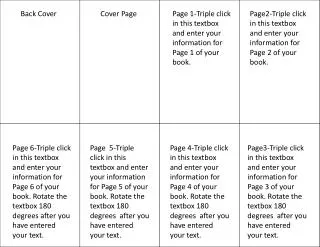
This guide provides clear instructions for entering information on each page of your book. Follow the simple steps for pages 1 through 6, ensuring you have the correct content and format. After filling in each textbox, remember to rotate it 180 degrees for optimal viewing. This user-friendly approach makes it easy to compile your book's content, helping you to create a professional-looking layout. Perfect for self-publishing authors or anyone looking to organize their writing project.

Create Your Book: A Step-by-Step Guide for Each Page
E N D
Presentation Transcript
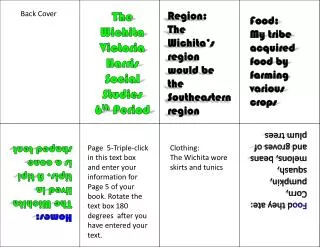
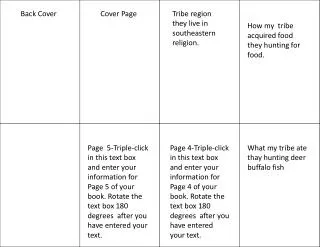
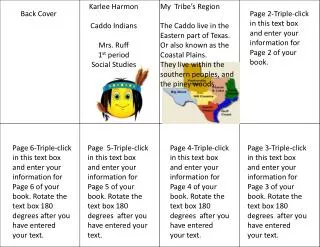
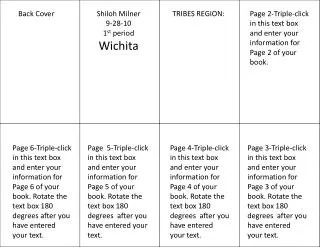
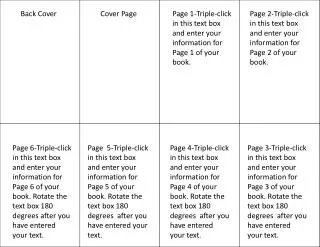
Back Cover Cover Page Page 1-Triple click in this textbox and enter your information for Page 1 of your book. Page2-Triple click in this textbox and enter your information for Page 2 of your book. Page 6-Triple click in this textbox and enter your information for Page 6 of your book. Rotate the textbox 180 degrees after you have entered your text. Page 5-Triple click in this textbox and enter your information for Page 5 of your book. Rotate the textbox 180 degrees after you have entered your text. Page 4-Triple click in this textbox and enter your information for Page 4 of your book. Rotate the textbox 180 degrees after you have entered your text. Page3-Triple click in this textbox and enter your information for Page 3 of your book. Rotate the textbox 180 degrees after you have entered your text.