
Organizing Long Documents with Master and Subdocuments
E N D
Presentation Transcript
Maintaining Documents and Macros Microsoft Word 2013 Lesson 12 Microsoft Official Academic Course, Microsoft Word 2013
Software Orientation • When you open the Outline view from the View tab, the Outlining Command/Tab contains buttons for working with long documents and arranging the document into smaller sections. Microsoft Official Academic Course, Microsoft Word 2013
Arranging Document Views • Creating master documents enables you to work efficiently with large reports such as your research paper or other long reports. • These long documents are broken down into subdocuments making it more manageable and easy to edit. • Creating a folder makes managing a long report much easier. Microsoft Official Academic Course, Microsoft Word 2013
Working with a Master and Subdocuments • A master document is the main document created in Word, such as a research paper. • A research paper or another long report contains information such as a title, introduction, subject relevant information, and works cited to name a few. • This type of document could be a 60-page document, and scanning through the whole document could be cumbersome. • Working with a master document can organize the heading sections into smaller sections, called subdocuments, which are sections within the master document that have been separated into subsections. • When a subdocument is created, it becomes a separate file from the master although it still remains linked to the master document. Microsoft Official Academic Course, Microsoft Word 2013
Working with a Master and Subdocuments (cont.) • This allows you to open a small 2- or 3-page document rather than a 20-page document. • For example, you can create a master document for long reports and research papers. • When you finish formatting your master document with heading styles, you can separate it into a subdocument for each heading and its content. • Subdocuments are created based on their heading styles; the Subdocument is saved with the heading as the Filename. Microsoft Official Academic Course, Microsoft Word 2013
Working with a Master and Subdocuments (cont.) • Working with the master and subdocuments is similar to how you work on sections of your paper. • You can edit from your whole master document or work in the subdocument as a separate document. • When you edit and save subdocuments independently, the master document automatically gets updated because the subdocument is linked to the master document. • When you need to review the master document, all editing changes will appear in the document. Microsoft Official Academic Course, Microsoft Word 2013
Saving the Master Document • To help you manage the master document, it is best to save the master document and all the subdocuments in the same folder. • Creating a folder makes locating subdocuments quick. Microsoft Official Academic Course, Microsoft Word 2013
Creating Subdocuments • A subdocument is part of the master document and is separated into small sections. • Each subdocument has a unique filename based on the heading style that was applied to the document when it was created. • This feature is useful for a large research paper—you work on one subdocument section at a time rather than having the whole document open. • The first step is identifying the levels within the subdocuments just like you would in creating an outline. • When formatting aresearch paper for instance, you apply a heading style to each new section in your paper (styles are covered in Lesson 3). Microsoft Official Academic Course, Microsoft Word 2013
Creating Subdocuments (cont.) • When you are editing subdocuments separately, the master document is automatically updated. • The Outlining Command/Tab contains the Collapse and Expand subdocument buttons that correlate with the master document. Microsoft Official Academic Course, Microsoft Word 2013
Subdocument • Introduction has a subdocument icon on the left side and is surrounded by a border with a continuous section break above and below the heading. • This allows Word to distinguish the beginning and end of a subdocument with a continuous flow to the master document. • A border indicates this is a subdocument.
Saving Subdocuments • The next step is to save the master document with the subdocuments. • Word automatically creates a filename for each of the subdocuments based on the text formatted with the heading styles. • Word saves them as a separate file, but in the same folder. • When the master document is saved, each of the headings and the text under the heading is saved into a separate file automatically. Microsoft Official Academic Course, Microsoft Word 2013
Expanding and Collapsing Subdocuments • To view the master document with its contents, click the Expand Subdocuments button on the Outlining Command/Tab. • Once the Expand Subdocuments button is clicked, you can switch views and the document remains expanded. • The Collapse Subdocuments button closes the subdocuments. Microsoft Official Academic Course, Microsoft Word 2013
Promoting and Demoting Subdocuments • When you rearrange levels in a master document, you move the subdocument heading to another level by using the commands in the Outlining Command/Tab by either promoting or demoting the level. • For instance, to move a topic in the paper under another heading, you demote that heading. • In the Outlining Command/Tab, you have options to change the levels of the headings by using the promote or demote buttons. Microsoft Official Academic Course, Microsoft Word 2013
Reorganizing Subdocuments • Subdocuments can be rearranged within the master document. • The order of subdocuments can be changed by moving the subdocuments from one location to another using the command buttons on the Outlining Command/Tab or by dragging and dropping. • Once you move a subdocument, you need to unlink it and recreate it. • You can also merge two or more subdocuments into one subdocument. • Subdocuments can be edited directly in the master document, or you can open the subdocument as a separate file in its own window. Microsoft Official Academic Course, Microsoft Word 2013
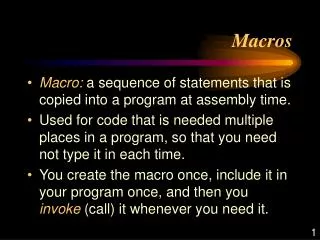
Macros: • A macro is a recorded sequence of commands to automate a task. • Series of commands and actions that can be recorded and run whenever you need to perform the same task over and over. • When a macro is created you can either assign it to run with a specific key or a keystroke.
Recording Macros (cont.) • Once you determine which method to assign the macro, the next step is recoding your steps. • While Word is recording a macro, you see the mouse pointer change to a recording pointer on your screen. • At this point, every keystroke and mouse click is recorded. • When working with macros, you cannot use the mouse to select text. • Once a macro is recorded, you can press the keyboard shortcut (Alt+F8) to run it in a blank or existing document. • To delete a Macro, simply select the macro you want to delete and click delete. Microsoft Official Academic Course, Microsoft Word 2013
Macros • You can get to Macros two ways: • Developer Tab • View Tab