To Respond to Questions
80 likes | 208 Vues
This guide provides step-by-step instructions on how to use clickers in your class effectively. It covers entering answers to various types of questions, including numerical and short-answer formats, and outlines how to submit homework assignments through the clicker setup menu. You will learn to navigate the answer screens, wake up idle clickers, and confirm submission of homework to ensure a smooth learning experience. Follow these directions to enhance your participation and accountability in class activities.


To Respond to Questions
E N D
Presentation Transcript
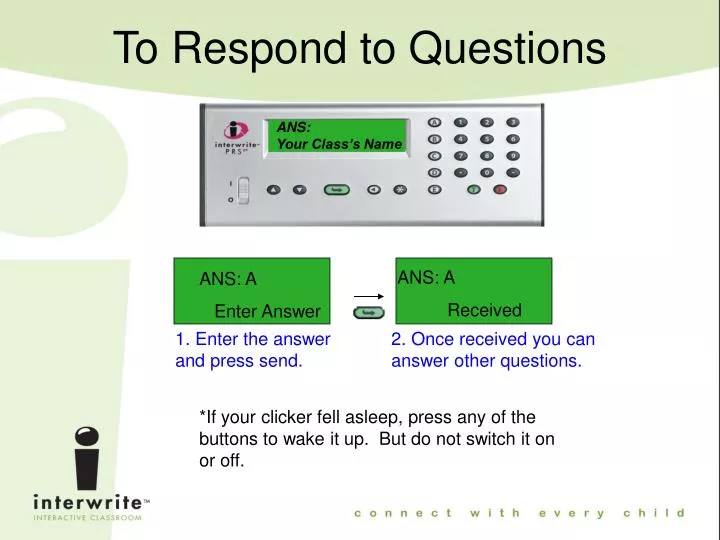
ANS: Your Class’s Name ANS: A Enter Answer ANS: A Received To Respond to Questions 1. Enter the answer and press send. 2. Once received you can answer other questions. *If your clicker fell asleep, press any of the buttons to wake it up. But do not switch it on or off.
To Answer Numerical Questions Press once for decimal, press twice for / Press once for negative
To Answer Short Answer Questions Use these letter keys to and these scroll buttons to type words.
Answering Questions in Self-Paced Mode TST: 1 Click101 Q01: 2 Enter Answer 1. Enter the test number and press send button. 2. Use the down scroll button to scroll to the first question, and then type your answer.
Answering Questions in Self-Paced Mode Q01: 2 Received Q02: 3 Enter Answer 3. Once you have entered your answer, press the green send button. 4. Use the down scroll button to scroll to the next question, and then type your answer.
ANS: Your Class’s Name Joining Class Submitting Homework 1. Turn on your clicker and join your class. 2. Once you are at the answer screen, press the * button once to enter the set-up menu.
Setup Menu Homework 1 Submitting Homework 3. Use the scroll buttons until you get to the homework assignment you wish to submit. 4. Then press the send button.
Homework 1 Send ANS: Received 04/04 Submitting Homework 5. Press the send button again to submit your homework assignment. 6. You will then get a confirmation of how many answers were received.