Essential Computer Skills: A Beginner's Guide to Windows and Operating Systems
This guide offers a comprehensive introduction to computers and the Windows operating system. It covers basic concepts such as what a computer is, the function of operating systems, and the proper ways to start and shut down your device. Key functions are explored, including using a mouse, opening and closing programs, and utilizing menu and tool bars. Additionally, it teaches essential tasks like copy, cut, and paste, ensuring that newcomers can navigate their computers confidently and efficiently.

Essential Computer Skills: A Beginner's Guide to Windows and Operating Systems
E N D
Presentation Transcript
Overview • What is a computer? • What is an operating system? • Starting and Shutting Down a computer • The mouse (Windows) • Opening and closing programs • Menu Bars and Tool Bars • Copy, Cut and Paste
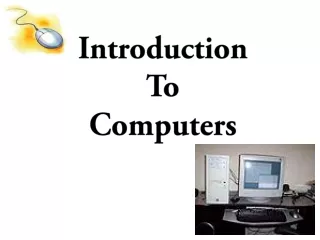
What is a computer? • Desktop • Laptop • Tablet
What is an Operating System? • A computer program that “Operates” all other computer programs • Examples: • Windows 8 • OS X
Starting your Computer • Press the power button • The computer will begin an installation procedure and this might take a few minutes
The Mouse (Windows) • The mouse is the device that allows you to control the cursor on the Screen • The mouse can help you perform many different functions: • Opening programs • Highlight text • Drag items
The Mouse (Windows) • Right Click vs. Left Click • Cursor Types • Arrow • Text • Busy • Hand
Finding a Program (Windows 8) • Move cursor to the top right side of the screen • Select the search icon on the side bar • Search icons or type the name of the program in the search bar
Opening a Program • When on the desktop you can also double-click an icon to open it
Minimize Close Maximize
Menu Bars and Tools • Most programs will have menu bars • The menu bars will help you perform your task • Sample menu bar titles: • File • Edit • View • Tools • Windows
Copy Cut and Paste • This feature is used to transfer information from one location on your computer to another
Copy vs. Cut • Copying will create a duplicate copy of the selected information • Cut will move the selected information from one location to another
Paste • Use paste to place the copied or cut information in its new location
Shutting Down Move your mouse over the bottom right corner of the screen and a slide out menu will appear Select the settings icon Now the Settings Bar is open click on the Power Icon Click Update and Shut Down • Shutting Down your computer correctly is very important • Closes all running processes • Prevents loss of data • Windows 8 Shut Down procedure
601 Reid Ave., Fort Frances, ON, P9A 0A2 807-274-9879 ffpltc@gmail.com