

SlideServe
Menu
Préférences
© SlideServe · v2026

Amion : Log On

tokala avatar
5 diapositives · 280 Views · Aug 04, 2014

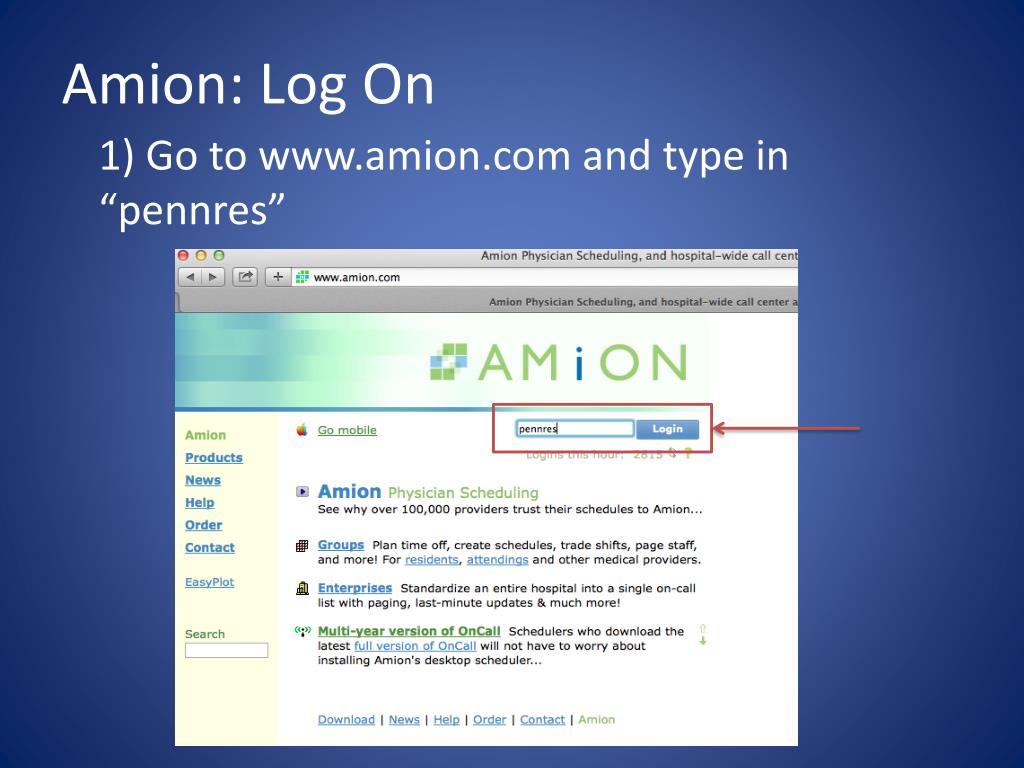
Amion : Log On. 1) Go to www.amion.com and type in “ pennres ” . Amion : “Who’s on” Page. 2) After login, a page showing the admitting teams for that day will come up. Click “IM Residents”. Looking at Individual Monthly Schedule—Step 1.
Amion : Log On - slide 1
01 / 5Amion : Log On
1 / 17

Télécharger la présentation

Amion : Log On
Une image / un lien ci-dessous est fourni (tel quel) pour télécharger la présentation

Politique de téléchargement : le contenu du site vous est fourni TEL QUEL pour votre information et votre usage personnel ; il ne peut être vendu, concédé sous licence ni partagé sur d’autres sites sans l’accord de son auteur.Le contenu vous est fourni TEL QUEL, pour votre information et votre usage personnel uniquement. Téléchargez la présentation en cliquant sur ce lien. Lors du téléchargement, si vous ne parvenez pas à télécharger une présentation, l’éditeur a peut-être supprimé le fichier de son serveur.Pendant le téléchargement, si vous ne parvenez pas à obtenir une présentation, le fichier a peut-être été supprimé par l’éditeur.

F I N

Plus de contenu associé

Transcription de la présentation
  1. Amion: Log On 1) Go to www.amion.com and type in “pennres”

  2. Amion: “Who’s on” Page 2) After login, a page showing the admitting teams for that day will come up. Click “IM Residents”

  3. Looking at Individual Monthly Schedule—Step 1 3) The daily Call Schedule will then pop up. Ignore it and click the “Block” schedule

  4. Looking at Individual Monthly Schedule—Step 2 4) Select the training level—Intern (Cat), SAR (Cat), etc. then select your name from the list

  5. Looking at Individual Monthly Schedule—Step 3 5) You can view the provider’s daily schedule Non-Admitting Day (does not say “On Call” or list type of call or admitting times) Admitting Day Day Off (See only name of rotation in italics but no shift listed)