Essential Audio Setup Tips for Adobe Connect
Ensure a smooth audio experience in Adobe Connect with these crucial setup tips. Start by verifying that your headset is properly connected, with the green and pink connectors in the right slots on your PC or docking station. If your headset isn't working, check the "Hold to Talk" button, volume settings, and ensure you're not on mute. Adjust microphone settings through the Control Panel and confirm that audio devices are selected in the Sound options. Lastly, utilize the audio setup wizard and explore advanced audio settings for optimal performance.

Essential Audio Setup Tips for Adobe Connect
E N D
Presentation Transcript
Audio set up tips Adobe Connect Des Osborn - July 2007
Headset installation Des Osborn - July 2007
Installation check Are your connectors attached correctly? Are they pushed in properly? Are the colour [green (headset) and pink (microphone)] connectors in correct slots in front of PC? If you are using a laptop, they may need to be plugged in to the docking station. Des Osborn - July 2007
Headset not working after installation? Des Osborn - July 2007
Talk button Are you holding down the Hold to Talk button while you talk and not just pressing it and then letting it go? Des Osborn - July 2007
Volume check Is your computer on Mute? Is the slider at least halfway up? Des Osborn - July 2007
Volume check In the Camera and Voice pod, use the Pod Options dropdown and check that you have Voice On – Multiple Speakers turned on. Des Osborn - July 2007
Microphone check Double click on the volume icon in your taskbar. Uncheck any mute boxes. Des Osborn - July 2007
Microphone check Double click on the volume icon in your taskbar. Go to Options > Properties Make sure the correct mixer device is selected, select Recording and make sureall boxes are checked (especially microphone). Des Osborn - July 2007
Microphone check Do this again but this time… Go to Options > Properties Make sure the correct mixer device is selected, select Recording andmake suremicrophone is selected. Des Osborn - July 2007
Check for audio devices Start > Control panel > Sounds and audio devices > Audio tab. Make sure your devices are selected in the Sound playback and Sound recording areas. Des Osborn - July 2007
Microphone check Start > Control panel > Sounds, speech & audio devices > Speech > Configure Microphone > work through the Wizard Des Osborn - July 2007
Audio check in the Adobe Connect Meeting room Des Osborn - July 2007
Optimal settings in the meeting room From the Meeting dropdown, check these settings. Des Osborn - July 2007
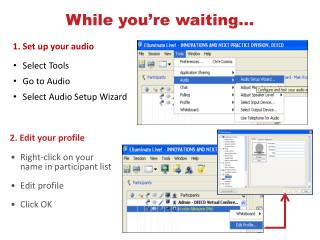
Audio set up wizard Des Osborn - July 2007
Advanced audio settings Half duplex – one speaker at a time, helps when echo exists & microphones are sensitive Full duplex – multiple speakers but can cause echo
Last ditch efforts! Stop your Camera & Voice and restart. Log out then log back in. Call ICT for help!!!!!
Print this file as a handout • Select printer • Print what: Handouts • Color / grayscale: Grayscale • Slides per page: 6 Des Osborn - July 2007