Netgear-AX1800-Extender-Setup-Guide
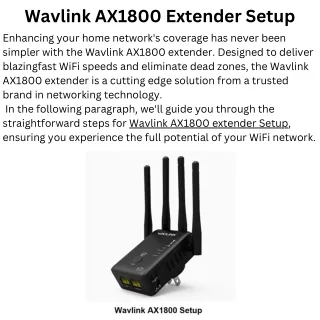
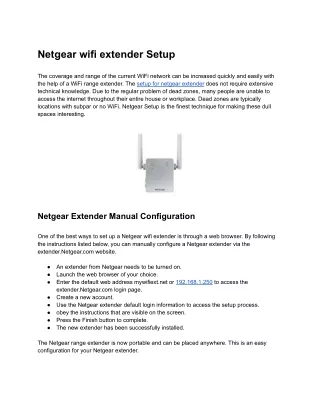
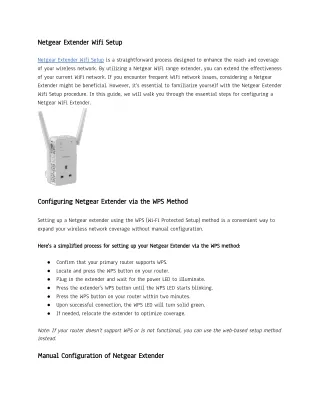
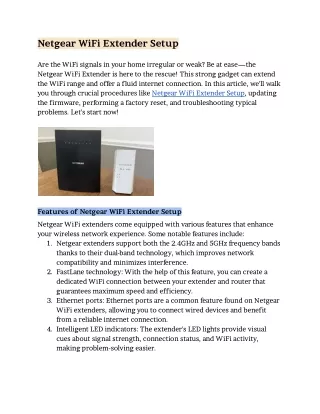
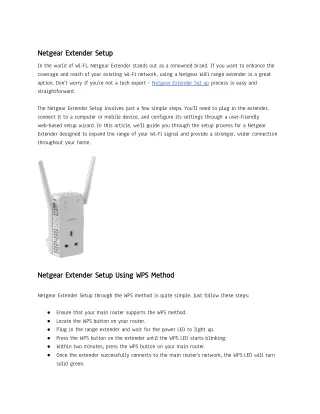
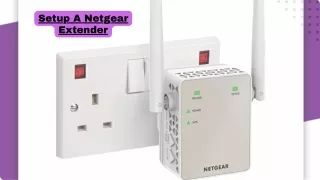
Netgear Nighthawk AX1800 WiFi range extender is a small and impactful networking device. You can connect it with ease, manage any setting in minutes via Nighthawk app & extend signals in your home.


Netgear-AX1800-Extender-Setup-Guide
E N D
Presentation Transcript
Netgear AX1800 Extender Setup Guide Transform your WiFi coverage with simple, step-by-step setup using the Netgear Nighthawk App. Visit : https://mywi-fiext.net/
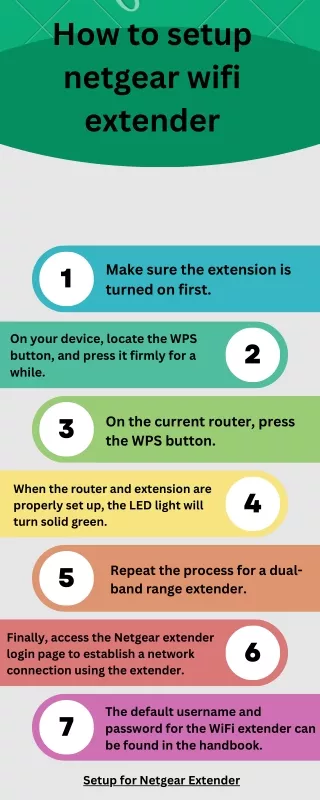
Before You Start 1 2 Position Extender Check WiFi Bands Plug the extender near your router initially—don't go too far yet. Ensure your WiFi works on both 2.4GHz and 5GHz frequencies. 3 4 Connect Phone Install App Keep your phone connected to your existing WiFi network. Download Netgear Nighthawk App from Play Store or App Store.
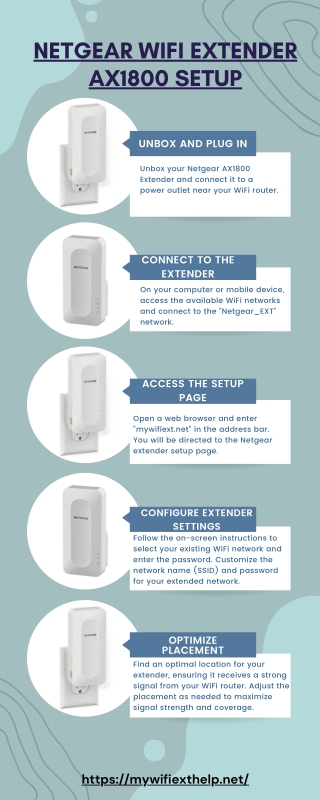
Powering Up Your Extender Plug in your AX1800 extender and watch for the Power LED to turn solid green. If it blinks continuously, unplug it and wait 10 seconds before reconnecting. A solid green light means you're ready to proceed.
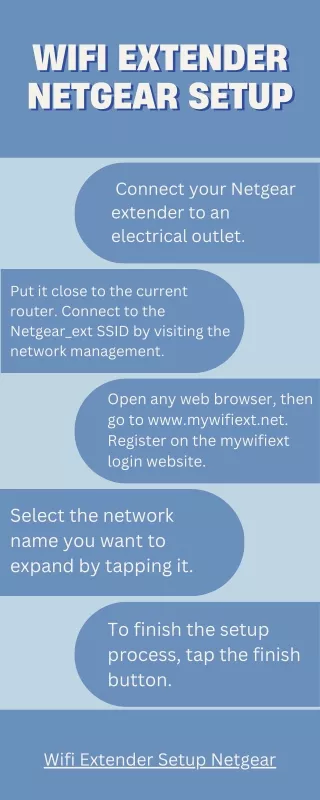
Connecting to Extender WiFi 01 Open WiFi List Access your phone's WiFi settings. 02 Find NETGEAR_EXT Look for the extender's network name. 03 Connect No password needed at this stage. 04 Troubleshoot If disconnecting, forget network and reconnect.
Launch the Nighthawk App Open App New Setup Launch Nighthawk App on your phone. Tap New Setup, then select Extender. Device Scan Connect App searches for your AX1800 extender. Enter password carefully when prompted.
The Setup Wizard Process This part is straightforward but takes time. The app will scan for your router, link the extender, and create an extended network (usually adds "_EXT" to your WiFi name). Important: When it says "Connected Successfully," wait until both bands (2.4GHz & 5GHz) show connected before hitting Finish. If setup fails, restart the app and try again.
Relocate for Optimal Coverage Unplug & Move Position extender halfway between router and dead zone. Avoid Extremes Too close to router is useless; too far loses signal. Power On Plug in and wait for solid green LED. Verify Signal Extended network should show strong on your phone.
Quick Performance Checks Stream Test LED Status Mobility Test Open YouTube—no lag means you're good to go. Check for 3 solid green LEDs on the extender. Walk around—signal should stay steady throughout. If signal drops, adjust extender location a few feet at a time until it stabilizes.
Common Troubleshooting Fixes Restart Devices Reboot both router and extender to refresh connections. Forget & Reconnect Remove all "_EXT" WiFi networks from phone, then reconnect fresh. Update Firmware Check for extender firmware updates in the Nighthawk App. Factory Reset If nothing works, perform a factory reset and start over.
Enjoy Better WiFi Coverage Once running properly, you'll notice better signal strength, faster loading times, and less buffering throughout your home. Maintenance Tips: • Keep firmware updated regularly • Don't hide extender behind walls or TVs • Reboot occasionally like your phone