
SlideServe
Menu
Préférences
© SlideServe · v2026

Video in Power Point

Olivia avatar
10 diapositives · 377 Views · Oct 18, 2011

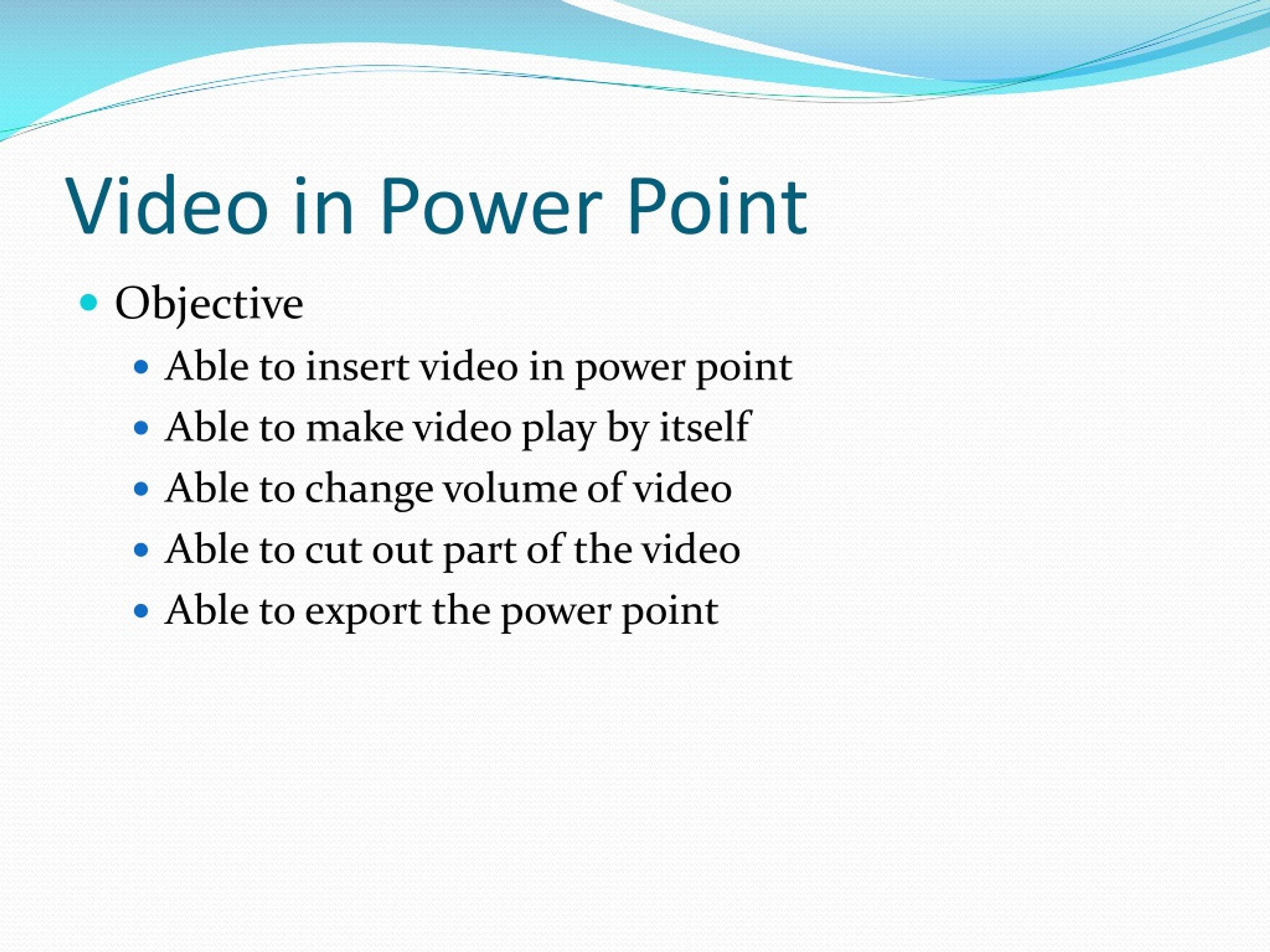
Video in Power Point. Objective Able to insert video in power point Able to make video play by itself Able to change volume of video Able to cut out part of the video Able to export the power point. Video in Power Point. Select Insert from the menu bar. Select Movie ->Movie from File.
Video in Power Point - slide 1
01 / 10Video in Power Point
1 / 17

Télécharger la présentation

Video in Power Point
Une image / un lien ci-dessous est fourni (tel quel) pour télécharger la présentation

Politique de téléchargement : le contenu du site vous est fourni TEL QUEL pour votre information et votre usage personnel ; il ne peut être vendu, concédé sous licence ni partagé sur d’autres sites sans l’accord de son auteur.Le contenu vous est fourni TEL QUEL, pour votre information et votre usage personnel uniquement. Téléchargez la présentation en cliquant sur ce lien. Lors du téléchargement, si vous ne parvenez pas à télécharger une présentation, l’éditeur a peut-être supprimé le fichier de son serveur.Pendant le téléchargement, si vous ne parvenez pas à obtenir une présentation, le fichier a peut-être été supprimé par l’éditeur.

F I N

Plus de contenu associé

Transcription de la présentation
  1. Video in Power Point • Objective • Able to insert video in power point • Able to make video play by itself • Able to change volume of video • Able to cut out part of the video • Able to export the power point

  2. Video in Power Point • Select Insert from the menu bar

  3. Select Movie ->Movie from File

  4. Press Automatically button

  5. Move or change the screen size

  6. Change sound ->Click Slide Show Volume

  7. Change to Full Screen play

  8. Export power point • Save As -> • Powerpoint Show • Give a file name

  9. Files to submit • Two files: • Power point file • Video file • Submit both of them

  10. Note • Make sure: • Click the power point file • Video would play automatically