Browsing the Internet Using Internet Explorer 8.0
Browsing the Internet Using Internet Explorer 8.0. Quick Links to Presentation Contents. Use Internet Explorer 8.0 Navigate Using Hyperlinks Search for Specific Sites Use a Metasearch Engine Complete Advanced Searches Download Images, Text, and Web Pages CHECKPOINT.


Browsing the Internet Using Internet Explorer 8.0
E N D
Presentation Transcript
Quick Links to Presentation Contents • Use Internet Explorer 8.0 • Navigate Using Hyperlinks • Search for Specific Sites • Use a Metasearch Engine • Complete Advanced Searches • Download Images, Text, and Web Pages • CHECKPOINT
Use Internet Explorer 8.0 • The Internet is a network of computers connected around the world. • To use the Internet, three things are generally required: an Internet Service Provider (ISP), a program to browse the Web (called a web browser), and a search engine. • Uniform Resource Locators, referred to as URLs, are used to identify locations on the Internet.
Use Internet Explorer 8.0…continued Click here to insert a new tab. Favorites bar search box toolbar Title bar Navigation bar Address bar Change zoom level Status bar
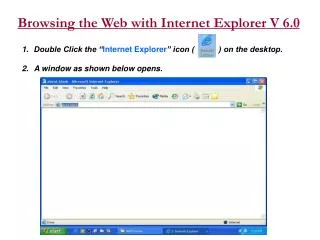
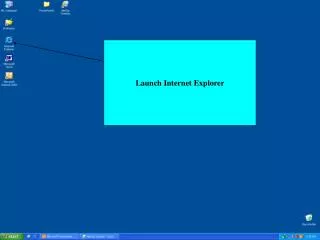
Use Internet Explorer 8.0…continued To view a website: • Launch Microsoft Internet Explorer. • At the Internet Explorer window, click in the Address bar. • Type the website URL. • Press Enter. Address bar
Use Internet Explorer 8.0…continued • URLs are the method used to identify locations on the Internet. • The format of a URL is http://server-name.path.
Navigate Using Hyperlinks • Most web pages contain “hyperlinks” that you click to connect to another page within the website or to another site on the Internet. • Hyperlinks may display in a web page as underlined text in a specific color or as images or icons.
Navigate Using Hyperlinks…continued To return to the previous web page viewed: • At the linked web page, click the Back button. Back button
Search for Specific Sites To search for information: • At the Internet Explorer window, click in the search text box. • Type a keyword or phrase. • Press Enter. search text box
Search for Specific Sites…continued To use a search engine to complete a search: • At the Internet Explorer window, click in the Address bar. • Type the URL for the search engine. • Press Enter. • At the search engine website, position the insertion point in the search box. • Type a keyword or phrase. • Press Enter. search engine website
Use a Metasearch Engine To search with a metasearch engine: • At the Internet Explorer window, click in the Address bar. • Type the URL for the metasearch engine. • Press Enter. • At the metasearch engine website, position the insertion point in the search text box. • Type a keyword or phrase. • Press Enter. metasearch engine website
Complete Advanced Searches To use advanced search options at the Yahoo! home page: • At the Yahoo! home page, click the Web Search button. • Click the more hyperlink. • Click the Advanced Search option at the drop-down list. • At the Advanced Web search page, click the desired options and type the search text. • Click the Yahoo! Search button. Advanced Web search page
Download Images, Text, and Web Pages To download a web page: • Display the desired web page. • Click the Page button on the Internet Explorer toolbar. • Click the Save As option at the drop-down list. continues on next slide… Page button
Download Images, Text, and Web Pages…continued • At the Save Webpage dialog box, navigate to the desired folder. • Type a file name. • Click the Save button. Save Webpage dialog box
Download Images, Text, and Web Pages…continued To download an image: • Display the desired web page. • Right-click the desired image. • Click the Save Picture As option at the shortcut menu. continues on next slide… Save Picture Asoption
Download Images, Text, and Web Pages…continued • At the Save Picture dialog box, navigate to the desired folder. • Type a file name. • Click the Save button. Save Picture dialog box
Download Images, Text, and Web Pages…continued To insert a saved image in Microsoft Word: • Open Microsoft Word. • Click the Insert tab. • Click the Picture button in the Illustrations group. • At the Insert Picture dialog box, navigate to the desired file and then double-click the file. Insert Picture dialog box
Download Images, Text, and Web Pages…continued To open a saved web page in Microsoft Word: • Open Microsoft Word. • Click the File tab. • Click the Open button. • At the Open dialog box, navigate to the desired file and then double-click the file. Open dialog box
CHECKPOINT • This is the method used to identify locations on the Internet. • URCs • RULs • LUCs • URLs • In addition to individual search engines, you can use this type of engine, such as Dogpile. • maxisearch • minisearch • multisearch • metasearch Answer Answer Next Question Next Question • Click this button to return to the previous web page viewed. • Return • Previous • Back • Forward • To narrow a search, use these search options offered by the search engine. • affiliate • optional • advanced • alternate Answer Answer Next Question Next Slide
Summary of Presentation Concepts • Navigate the Internet using URLs and hyperlinks • Use search engines to locate information • Download web pages and images