How to Print Slides from a PowerPoint Presentation
40 likes | 171 Vues
Learn how to print your PowerPoint slides easily, whether online or after saving them. Begin by clicking on 'File' then 'Print'. You'll be presented with printing options such as printing each slide on its own page, printing handouts with multiple slides per page, or printing notes if available. Choose the option that best suits your needs. For example, printing slides individually uses more paper and ink, while handouts can save resources. This guide simplifies your printing process in PowerPoint.


How to Print Slides from a PowerPoint Presentation
E N D
Presentation Transcript
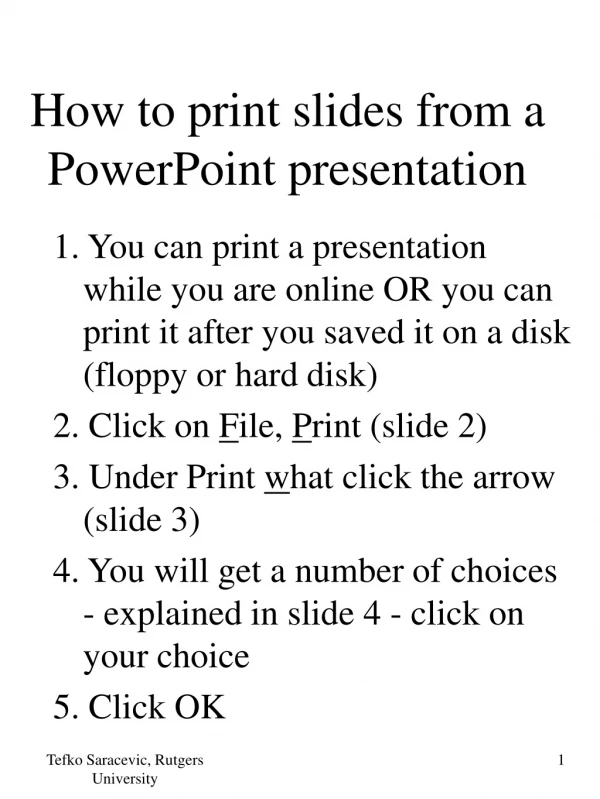
How to print slides from a PowerPoint presentation 1. You can print a presentation while you are online OR you can print it after you saved it on a disk (floppy or hard disk) 2. Click on File, Print (see slide 2) 3. Under Print what click the arrow (see slide 3) 4. You will get a number of choices - explained in slide 4 - click on your choice 5. Click OK Tefko Saracevic, Rutgers University
Slide 2 Tefko Saracevic, Rutgers University
Slide 3 Tefko Saracevic, Rutgers University
Slide 4 Slides (without animation): Prints each slide on a single page of paper (uses the most paper an ink – not recommended) Handouts (2 slides per page): A single page has two slides Handouts (3 slides per page): A single page has three slides etc. Notes pages: Prints slides with notes, if any (in these lectures there are no notes) Outline view: Prints the text of slides, but no graphics (most compact, but does not print images or tables) Tefko Saracevic, Rutgers University