File management and security
File management and security. Keeping your computer files in order – and safe!. File management and security. Managing files Naming files Finding files on your computer Backing up Protecting your computer. Managing files. Don’t put everything onto your desktop!

File management and security
E N D
Presentation Transcript
File management and security Keeping your computer files in order – and safe!
File management and security • Managing files • Naming files • Finding files on your computer • Backing up • Protecting your computer
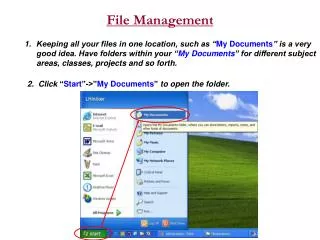
Managing files • Don’t put everything onto your desktop! • Don’t put everything into one directory! • Create directories and subdirectories for your work files • Put files into the correct subdirectory
Click here Then here Managing files • In Windows Explorer • Use Details view • View > Details • Set all folders to Details view • Tools > Folder Options… > View > Apply to all folders
Click here to sort by Name Click here to sort by Date Managing files • In Details view • Sort by Name, Size, Type or Date
Naming files • Give files an informative name • So you know what is in them • Include this information in filename • Informative title • Date • Author • Language • Version
Naming files Title_Date_Author_Language_Version Nespak_progress report_Mar07_AB_en_1.doc en = English fa = Farsi
Version 1 Nespak_progress report_Mar07_AB_en_1.doc Version 2 Nespak_progress report_Mar07_AB-KQ_en_2.doc Version 3 Nespak_progress report_Mar07_AB-KQ_en_3.doc Naming files • Version numbers • Give each version a different number • Don’t delete the old version until you are SURE you are finished with it
Finding files on your computer • Create directories and subdirectories for each topic • Name files using Title_Date_Author_Language_Version • Put the files in the correct subdirectories • Use Details view in Windows Explorer • Sort by Name, Date, etc.
Results of search Task bar Enter search here Finding files on your computer • Install Google Desktop • Searches inside files on your computer • http://desktop.google.com/
Finding files on your computer • Google Desktop Search opens browser window • Click on links to open file
Backing up • Disaster! • Computer stolen… • Fire… • Virus attack… • You can lose ALL your work • Your boss will be seriously annoyed…
Backing up • Make a backup every Wednesday • Backup all your files to • CD-ROM • Portable hard drive • USB stick • Label the CD-ROM with the date • Keep in a safe place
Protecting your computer • Would you leave your computer in the street?
Protecting your computer • Make sure your computer is protected at all times • Lock it to your desk • Lock the door and window when you leave in the evening • Protect your computer from viruses
Protecting your computer • Viruses can • Allow other people to use your computer without you knowing • Allow other people to read your files • Damage your computer • Delete ALL your files
Protecting your computer • Viruses spread via • The Internet • Local area networks • Floppy disks • USB sticks • CD-ROMs
Antivirus software to buy Kasperskywww.kaspersky.com McAfeewww.mcafee.com Nortonwww.norton.com Free antivirus software Avastwww.avast.com Avirawww.free-av.com AVGwww.avg.com BitDefenderwww.bitdefender.com Microsoft Security Essentialswww.microsoft.com/Security_essentials Protecting your computer