User Registration and Management System Guide
Step-by-step instructions on creating new user profiles, editing profiles, and managing user statuses. Includes filling in personal information, security questions, and more. Visit the provided link for PA approval form.

User Registration and Management System Guide
E N D
Presentation Transcript
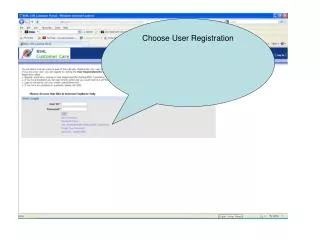
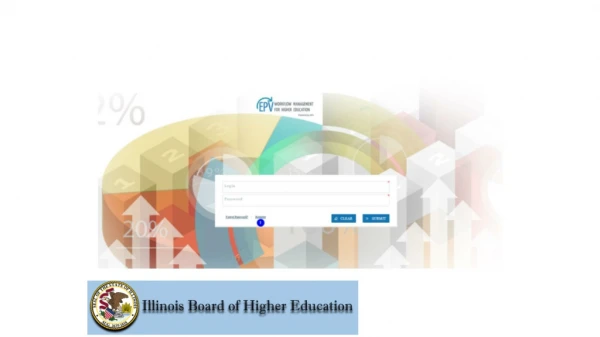
New User Registration Pt. 1 Organization & Role -Click the button next to ‘Institution’ -Fill in your title (i.e. Director of IR, Registrar) -Use the drop down menu to select your institution -Your role will be set to Primary Administrator
New User Registration Pt.2 Personal Information-The following fields are required to create your profile -Enter first name, last name -Institution address, state, zip code -Phone number -Email address & password
New User Registration Pt. 3 Security Questions – Fill in all three Approval Form – PA needs to be completed and uploaded https://www.ibhe.org/iheis.html Be sure to click to agree to the Terms & Conditions Click ‘Submit’ button in the bottom right corner
User Management Click ‘Add Users’ to create a new user profile
Adding New Users Pt. 1 Adding New Users -Enter new user title
Adding New Users Pt. 2 -Enter new user’s first name, last name, email address, password -Click ‘Submit’
User Status Change Click ‘Change Inactive/Active’ button
Edit Profile Pt. 1 Change Password -Enter and confirm new password Change Personal Information -Edit address and phone number
Edit Profile Pt. 2 -Changing Security Questions -Use drop down menus to select three security questions -Enter unique responses to security questions -Be sure to agree to Terms& Conditions -Click ‘Submit’
Deleting Profiles Click ‘Delete Profile’ tab
Deleting Profiles Click ‘Yes’ or ‘No’ to confirm