Mastering Change Tracking in MS Word for Effective Document Collaboration
Learn how to effectively track changes and collaborate on documents in MS Word. Begin by modifying your user name and initials in the Review tab to identify your comments and edits. Explore various tracking options to customize your experience. Once you activate the "Track Changes" feature, it will be highlighted, indicating that all modifications are recorded. Remember to disable this feature when you finish editing and before printing your document to remove all markup for a clean output.

Mastering Change Tracking in MS Word for Effective Document Collaboration
E N D
Presentation Transcript
Tracking changes in MS Word Or how to collaborate on documents
First change the user… On the ribbon, go to Review and click the arrow under track changes. You will get the following settings... Change the User name and the initials so we know comments and changes come from you.
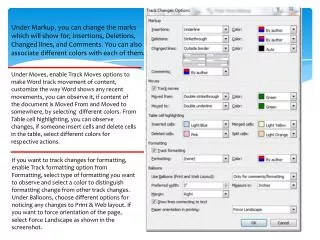
Other settings… Click on Change Tracking Options to get all the settings for review. You can leave them in default, but I just want you to see where to make changes if necessary.
Turn on tracking changes When track changes has been turned on, the button will be highlighted. When you are done with changes, be sure to turn this off. Before printing your document, turn off the markup.