Download
1 / 10
100 likes | 208 Vues
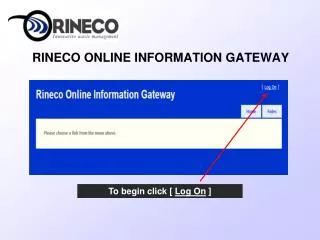
Welcome to the Rineco Online Information Gateway. To start, click "Log On" and choose 'Sales' from the menu screen. If you have over 100 generators linked, use the 'Generator Name Filter' to find specific entries. For viewing invoices, the system defaults to one month prior, but you can customize the date range. Access available reports like 'Unshipped Profiles' and 'Productivity by Territory' at least weekly. This guide provides essential steps for navigating the platform efficiently.

E N D
RINECO ONLINE INFORMATION GATEWAY To begin click [ Log On ]
The MENU screen will appear as below. Select directly from this page the action you choose to proceed with.
SELECTING A GENERATOR: For families that have more than 100 generators linked you will need to use the ‘Generator Name Filter’ box. Examples: PPG: to access a Porter Paints location - in the box type: %porter% and the Generator List returned will include all PPG generators with ‘Porter’ in the name. Enter %industries% and the Generator List returned will include all PPG generators with ‘Industries’ in the name.
When viewing invoices, the screen will automatically pull one month prior to the current date. You can change the date range you want to see (enter dates and apply filter) or you can select to ‘View Open Invoices’ From the Invoice Listing you can select to ‘View’ the invoice of your choice. From any screen click on ‘Sales’ to return to the MENU screen.
For reports that ask for beginning and ending sales order # the newscheme for numbering sales orders is as follows:A = 2010 B = 2011 etc.2nd & 3rd digits = month (Jan = 01, Feb = 02 etc.)4th – 7th digits = start/end at the beginning of the month enter 00004th – 7th digits = start/end at the ending of the month enter 9999
Available Reports:The ‘UNSHIPPED PROFILES’ and ‘PRODUCTIVITY by TERRITORY’ reports should be accessed at least once weekly by every manager.
Waste Shipment Summary ReportFrom the results page you can access individual profiles by clicking directly on them.