Download
1 / 13
130 likes | 243 Vues
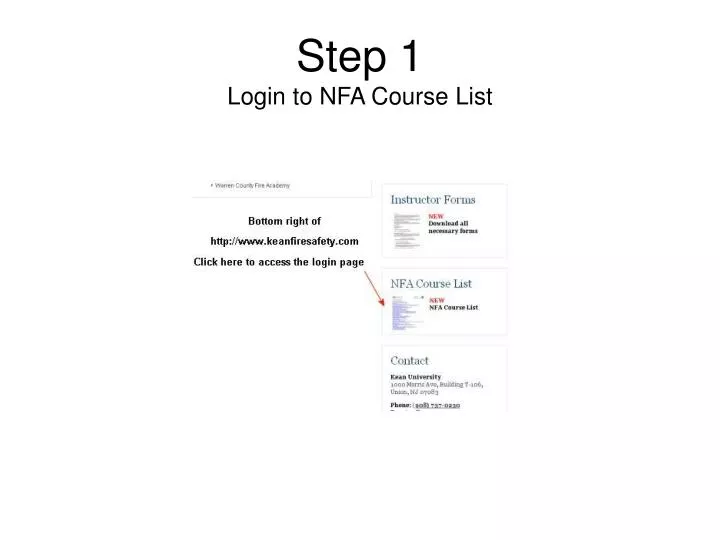
This guide provides step-by-step instructions for downloading and extracting materials from your NFA course. Begin by logging into your account and selecting the desired course from the list. Follow prompts to download each disk, save the files, and manage multiple downloads simultaneously. After downloading, locate the files in your designated folder, extract their contents, and organize them into a new folder named after the course. This way, you'll have all necessary materials easily accessible for your studies.

E N D
Step 5When you click the hyperlink, a dialog box will appear. Select the “Save File” option and click OK. (This will save the file to the folder on your computer which is designated for saving downloads.)
Step 6When download begins, this dialog box will appear. You can download multiple files at one time.
Step 7When the download is complete, browse to your download folder. Find the file or files which you have downloaded and double click the file name.
STEP 10Give your new folder the same name as the course you have downloaded. After naming the folder hit enter, this will select the new folder. Then click “Extract”. For courses for which you have downloaded multiple files. Extract each file into a unique folder within the course folder.
Step 11This dialog box will show you the progress while your file is being extracted.
Repeat Steps 7-11 for each file you downloaded for the course • Step 7When the download is complete, browse to your download folder. Find the file or files which you have downloaded and double click the file name. • Step 8Extract the contents of the file. • Step 9Click “New Folder” • Step 10Give your new folder the same name as the course you have downloaded. After naming the folder hit enter, this will select the new folder. Then click “Extract”. For courses which you have downloaded multiple files. Extract each file into a unique folder within the course folder. • Step 11This dialog box will show you the progress while your file is being extracted.
To view the course material. Browse to the course folder and open the appropriate document.