
SlideServe
Menu
Préférences
© SlideServe · v2026

How to Transfer Artisto Videos to Computer

carriemurray avatar
3 diapositives · 100 Views · Oct 21, 2016

When you have a video that looks like a collection of artworks by Picasso or van Gogh, you may want to safely store it on your computer. So we would like to introduce two methods for you to transfer your Artisto videos on iPhone/iPad to computer.
How to Transfer Artisto Videos to Computer - slide 1
01 / 3How to Transfer Artisto Videos to Computer
1 / 17

Télécharger la présentation

How to Transfer Artisto Videos to Computer
Une image / un lien ci-dessous est fourni (tel quel) pour télécharger la présentation

Politique de téléchargement : le contenu du site vous est fourni TEL QUEL pour votre information et votre usage personnel ; il ne peut être vendu, concédé sous licence ni partagé sur d’autres sites sans l’accord de son auteur.Le contenu vous est fourni TEL QUEL, pour votre information et votre usage personnel uniquement. Téléchargez la présentation en cliquant sur ce lien. Lors du téléchargement, si vous ne parvenez pas à télécharger une présentation, l’éditeur a peut-être supprimé le fichier de son serveur.Pendant le téléchargement, si vous ne parvenez pas à obtenir une présentation, le fichier a peut-être été supprimé par l’éditeur.

F I N

Plus de contenu associé

Transcription de la présentation
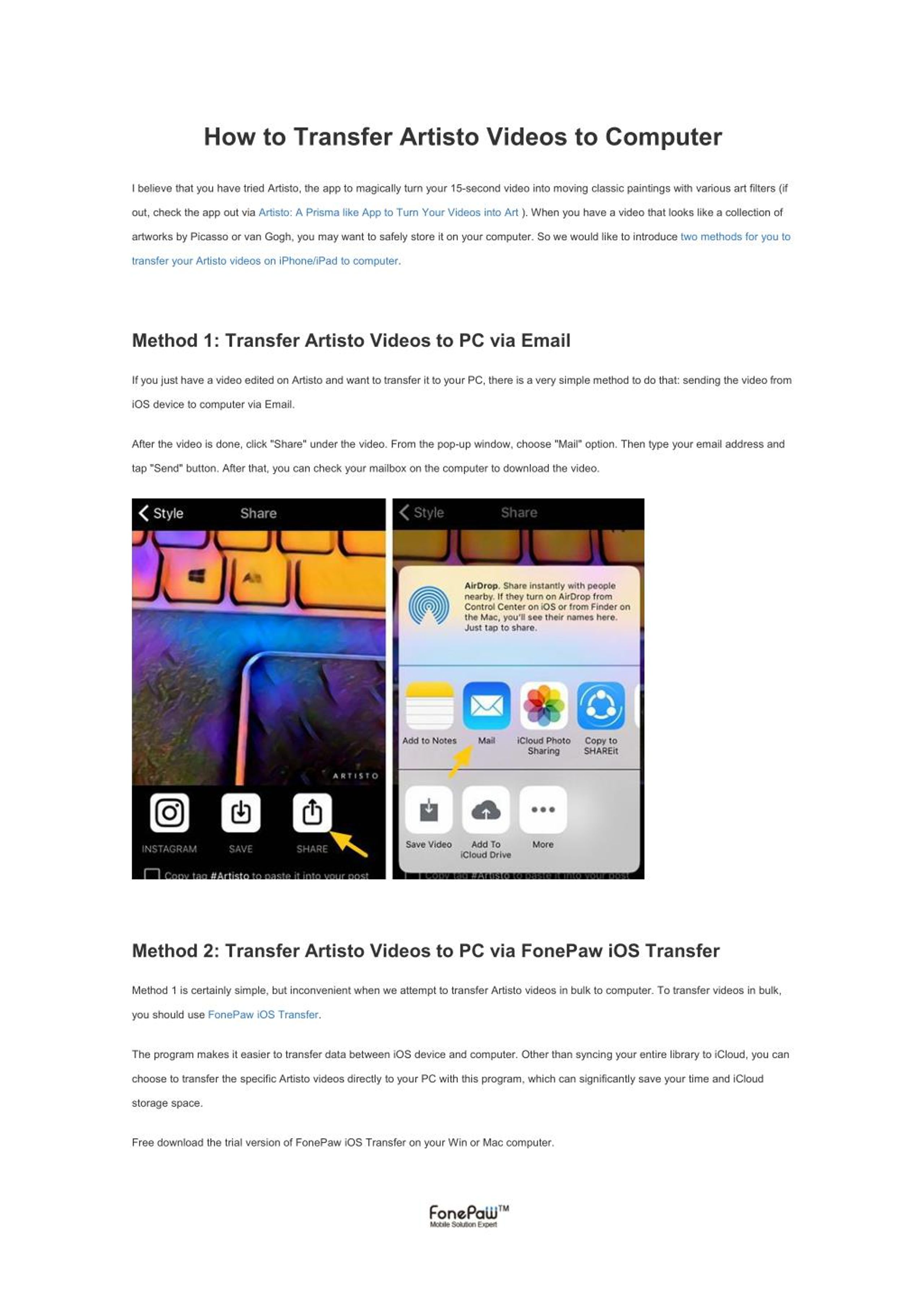
  1. How to Transfer Artisto Videos to Computer I believe that you have tried Artisto, the app to magically turn your 15-second video into moving classic paintings with various art filters (if out, check the app out via Artisto: A Prisma like App to Turn Your Videos into Art ). When you have a video that looks like a collection of artworks by Picasso or van Gogh, you may want to safely store it on your computer. So we would like to introduce two methods for you to transfer your Artisto videos on iPhone/iPad to computer. Method 1: Transfer Artisto Videos to PC via Email If you just have a video edited on Artisto and want to transfer it to your PC, there is a very simple method to do that: sending the video from iOS device to computer via Email. After the video is done, click "Share" under the video. From the pop-up window, choose "Mail" option. Then type your email address and tap "Send" button. After that, you can check your mailbox on the computer to download the video. Method 2: Transfer Artisto Videos to PC via FonePaw iOS Transfer Method 1 is certainly simple, but inconvenient when we attempt to transfer Artisto videos in bulk to computer. To transfer videos in bulk, you should use FonePaw iOS Transfer. The program makes it easier to transfer data between iOS device and computer. Other than syncing your entire library to iCloud, you can choose to transfer the specific Artisto videos directly to your PC with this program, which can significantly save your time and iCloud storage space. Free download the trial version of FonePaw iOS Transfer on your Win or Mac computer.

  2. Step 1. Interface with FonePaw iOS Transfer Launch the program on your computer, then let your iOS device interface with the program through USB connection. When first connect the iOS device to the program, you need to tap "Trust" on the device to enable the program to access the device. Step 2. Find the Artisto Videos On the program, click "Photos" on the left column. From the folders listed, select "Videos". Then you'll see all videos on your device. Find the Artisto videos you need. If you are not sure that this is the right video, you can play and preview the video with a double-click. Step 3. Transfer Artisto Videos to Computer Select the Artisto videos that you want to transfer, click "Export to" on the top or right click to choose "Export to PC". From the pop-up window, choose a folder to save your Artisto videos. The videos will be transfered to your computer in seconds.

  3. Tip: After you have edited the video with Artisto, remember to tap "Save" button to save the video to your photo library. Otherwise, you are unable to transfer the video to your computer. Now you can enjoy these amazing Artisto videos on your computer. And with FonePaw iOS Transfer, transferring photos, music, contacts, books, messages between iPhone/iPad and computer will just be this easy.