How to Use and Customize Shared Reports in Data Director
This guide by C. Compton provides step-by-step instructions on how to access and customize shared reports within Data Director. First, log in and select your school site. If not an administrator, site options are limited. Navigate to the "Reports" tab and view "All Reports." To modify a report, you must create a duplicate first. Learn how to filter reports by teacher and period, change report names, add or delete columns, and share your customized reports with others.

How to Use and Customize Shared Reports in Data Director
E N D
Presentation Transcript
USING MY SHARED REPORTSfromData Director How to Use Them and Make Them Your Own Created by C. Compton
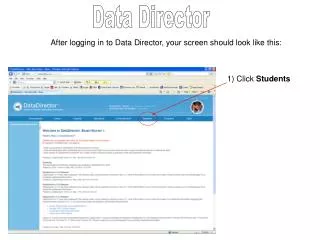
It will be reports that I have shared with you. • Log in to Data Director and choose “Your School” for the site. • If you are not a DD administrator, then you will not have a choice for site. • Click on the “Reports” tab. • Choose “All Reports” from the upper left box. • Click on the report you want to open. Created by C. Compton
You will need to make a copy (“DUPLICATE”) of the report before you can make any changes. (It will give you the option in the top of the menu at the left of the page.) Go to the next slide for a summary of “Report Edit Options”. To get the report by teacher & period… Under “Report General” menu on the left, click “PDF – Group by Teacher. It will pull up in Adobe. You can not change any information, only print. Print only the classroom teachers (art, PE, & tech will be there also) by page numbers. Created by C. Compton
Go here if you want to… to change the name of the report • Go here if you want to… • add new columns of data • delete columns of data • reorder the columns • sort the data • change the names of the columns Go here if you want to… to narrow the search to a more specific criteria. Example: You want to see only the students with a 4 or 3 on the Math MEAP. Go here if you want to… to share the report with others (individually, in a building, or the district) Created by C. Compton