Comprehensive Guide to Using myMART 3: Familiarization and Training for Educators
150 likes | 271 Vues
This guide provides educators with comprehensive training on myMART 3, covering essential operational workflows, features, and functionalities. Teachers will familiarize themselves with critical concepts such as grades, units, and sign-off processes. The training includes step-by-step exercises on accessing student information, quick entry, results, and using rubrics. Key points for maximizing the system's use are highlighted, as well as details on menu navigation and reporting functions. Access myMART 3 via the provided link to enhance teaching and reporting efficiency.


Comprehensive Guide to Using myMART 3: Familiarization and Training for Educators
E N D
Presentation Transcript
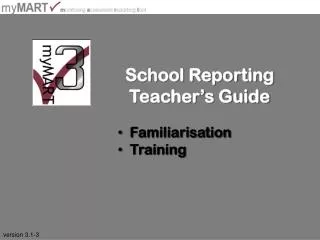
School Reporting • Teacher’s Guide • Familiarisation • Training version 3.1-3
Objective • Familiarisation • Operational workflow • Understand the operational concepts (Grades, Units, sign-off) • Training • Key points for Teachers to fully utilisemyMART 3 • Step-by-step exercises in the features for Teachers
Agenda • Training and Familiarisation • Access • Logon • Menu navigation • Class Lists • Access student information • Quick Entry • Results • Unit Comments • Rubrics • General Comments • Absentees
myMART 3 Concepts • Grades • A-E • End of Semester result (not end of year) • Units • E.g. Mathematics Year 4 • Year based view of the subject • Same outcomes for all year groups • Can have different outcomes active for different year groups • Form Class – for Interpersonal and Personal Development • Sign-off • Lock the data • Ready for final print • Can “un-sign” if need be
myMART 3 Access • http://schools.mymart3.com.au • Download of myMART 3 Silverlight Application • Login • Authenticates user • Access to school data • One login per school • Quick Links • Easy access • Different set per role • Menu System • Top tabs – pull down • Full-screen – F11 or Apple + Enter
Class Lists • Classes you have access to • Students in the selected class • Used for selection on the other forms (Quick Entry, Student Card, School Reports, etc) • Collapse to “paperclip” to hide
Student Details • Double-click student in the Students list • Student Card(s) Multiple Student Cards Double-click
Report Definitions Grades,Effort & Rubric Effort Grade Rubric
Quick Entry… Results Select Class • Select the Class • Select the Unit • Column (down) data entry • Single key stroke entry • Effort – O,V,S,I else 4, 3, 2, 1 • Outcome – A,B, C,D,E else 5,4,3,2,1 • Override – Principal or Admin Select Unit Principal (or Admin) override
…Quick Entry Unit Comments • Enter (or cut-and-paste) comments • Count-down of remaining characters as you type • Warning (orange) if too many characters Count-down
…Quick Entry… Sorting • Sort any column • Group all “A”s, “B”s, etc • Group all “O”s, “V”, etc • Data entry will resort dynamically
…Quick Entry… Moving & resizing columns • Move columns to suit your data entry • Resize columns
…Quick Entry… Interpersonal & Personal • Choose Form Class from Unit List • All rubric items listed in the header • Data Entry • C, F, O, R Else • 4, 3, 2 or 1 Form Class Unit Rubric item in header
…Quick Entry… Gen. Comments & Absentees • General Comment – by Class Teacher • Principal Comment • Absentees – full days (or part there of e.g. 2.5) • In-active columns will no be shown • If all 3 columns are in-active – then no tab Columns will be hidden if set to “in-active” (by Admin)
…Quick Entry Sign-off • Grade Data Entry: A,B,C or D Else 5, 4, 3, 2 or 1 When all data has been entered (and checked) • Sign-off => locked in, ready for final printing • Data is now read-only • Can “un-sign” if need be Sign-off Read-only