
Mastering Document Formatting: Headers, Footers, and Table Management Techniques
E N D
Presentation Transcript
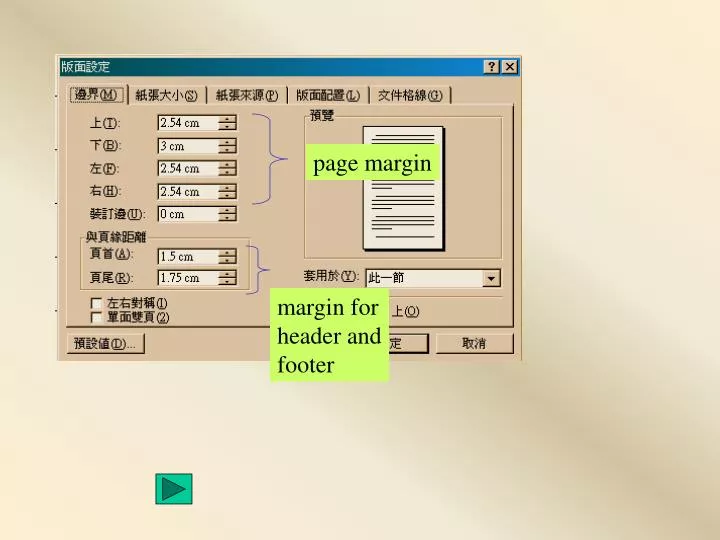
page margin margin for header and footer
page size page orientation
header current time current date swap between header and footer
page number setup swap between header and footer total number of page footer page number
page number format page number begins with
click to choose the type of tabs, and then click at the ruler to set position of tab tab left align right margin left margin tab right align using tabs to set underline
tab align on left tab align on right tab align with decimal point tab that drawing separating line
number of columns number of rows
insert/delete rows, columns or tables merge cells (horizontally or vertically) setting the borders of cells split merged cells split the tables into two tables the left and right margins of cells fine setting of the column width, row height
set the table set the border lines and the shading of cells
section break on next page add section break but keep on the page
Notice in some cases, the setting could affect current section only or whole page
number of columns adding separating line between columns space between columns set column width; uncheck the box if you want uneven columns width notice the setting being applied to current section or whole page
right margin begin of first line left margin using tabs to help formatting
tools -> options (general setting)
format -> autotext (auto text format/ auto correct/ auto numbering)