Technical Cable Installation Guide for KG200, KG300, C2500, C2600, G1800
Follow these steps to fix connectivity issues and install necessary drivers for KG200, KG300, C2500, C2600, and G1800 technical cables.

Technical Cable Installation Guide for KG200, KG300, C2500, C2600, G1800
E N D
Presentation Transcript
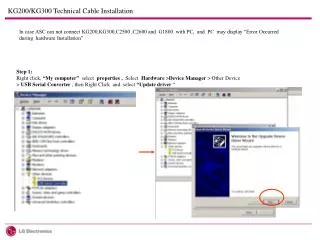
KG200/KG300 Technical Cable Installation In case ASC can not connect KG200,KG300,C2500 ,C2600 and G1800 with PC, and PC may display “Error Occurred during hardware Installation” Step 1: Right click, “My computer” select properties , Select Hardware >Device Manager > Other Device > USB Serial Converter , then Right Click and select “Update driver “
KG200/KG300 Technical Cable Installation Step 2 Select the second option and clink on next Step 3 Select Ports (COM & LPT)
KG200/KG300 Technical Cable Installation Step 4 Browse the driver File, (Available in Lgmobiles site, (Tools> Driver Technical cable, KG200,KG300) Download the file and keep in any folder in C drive, During browse, select the same folder and Open
KG200/KG300 Technical Cable Installation Step 7: Click on Yes Step 6 Select Prolific Technology and then Prolific USB to Serial Bridge
KG200/KG300 Technical Cable Installation Step 8: Click on next Step 9 Click on Finish
KG200/KG300 Technical Cable Installation Step 10 One can view the cable installed in the name Prolific USB to Serial Bridge
C2500/C2600/G1800 Technical Cable Installation Step 1: Right click, “My computer” select properties , Select Hardware >Device Manager > Other Device > USB Serial Converter , then Right Click and select “Update driver “
C2500/C2600/G1800 Technical Cable Installation Step 2 Select the second option and clink on next Step 3 Select Ports (COM & LPT)
C2500/C2600/G1800 Technical Cable Installation Step 4: Select Foxlink USB to Serial com port . Browse the driver File, (Available in Lgmobiles site, (Tools> Driver Technical cable, C2500, C2600, G1800) Download the file and keep in any folder in C drive, During browse, select the same folder and Open and browse the Driver File Step 5: Click on Finish
C2500/C2600/G1800 Technical Cable Installation Step 6 One can view the cable installed in the name Foxlink USB to Serial Com Port