Download
1 / 22
220 likes | 321 Vues
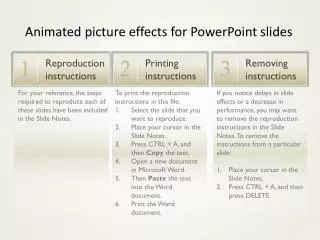
Discover step-by-step instructions for reproducing animated picture effects in PowerPoint slides. Follow simple printing guidelines to ensure clear copies. Easily remove instructions to improve performance. Access Slide Notes for detailed reproduction steps. For efficient printing, copy instructions to a Word document and print. Enhance your presentations with dynamic effects. Helpful tips and guidance included for smooth execution.

E N D
Animated picture effects for PowerPoint slides Reproduction instructions 1 Printing instructions 2 Removing instructions 3 For your reference, the steps required to reproduce each of these slides have been included in the Slide Notes. To print the reproduction instructions in this file: Select the slide that you want to reproduce. Place your cursor in the Slide Notes. Press CTRL + A, and then Copy the text. Open a new document in Microsoft Word. Then Paste the text into the Word document. Print the Word document. If you notice delays in slide effects or a decrease in performance, you may want to remove the reproduction instructions in the Slide Notes. To remove the instructions from a particular slide: Place your cursor in the Slide Notes. Press CTRL + A, and then press DELETE.
“Placeholder for a quote to be animated here.” – Attribution
The photo in slide 20 courtesy of Colin Wilcox All other photos in this template courtesy of Bill Staples