
SlideServe
Menu
Préférences
© SlideServe · v2026

Approving a Request

pahana avatar
3 diapositives · 245 Views · Jul 25, 2014

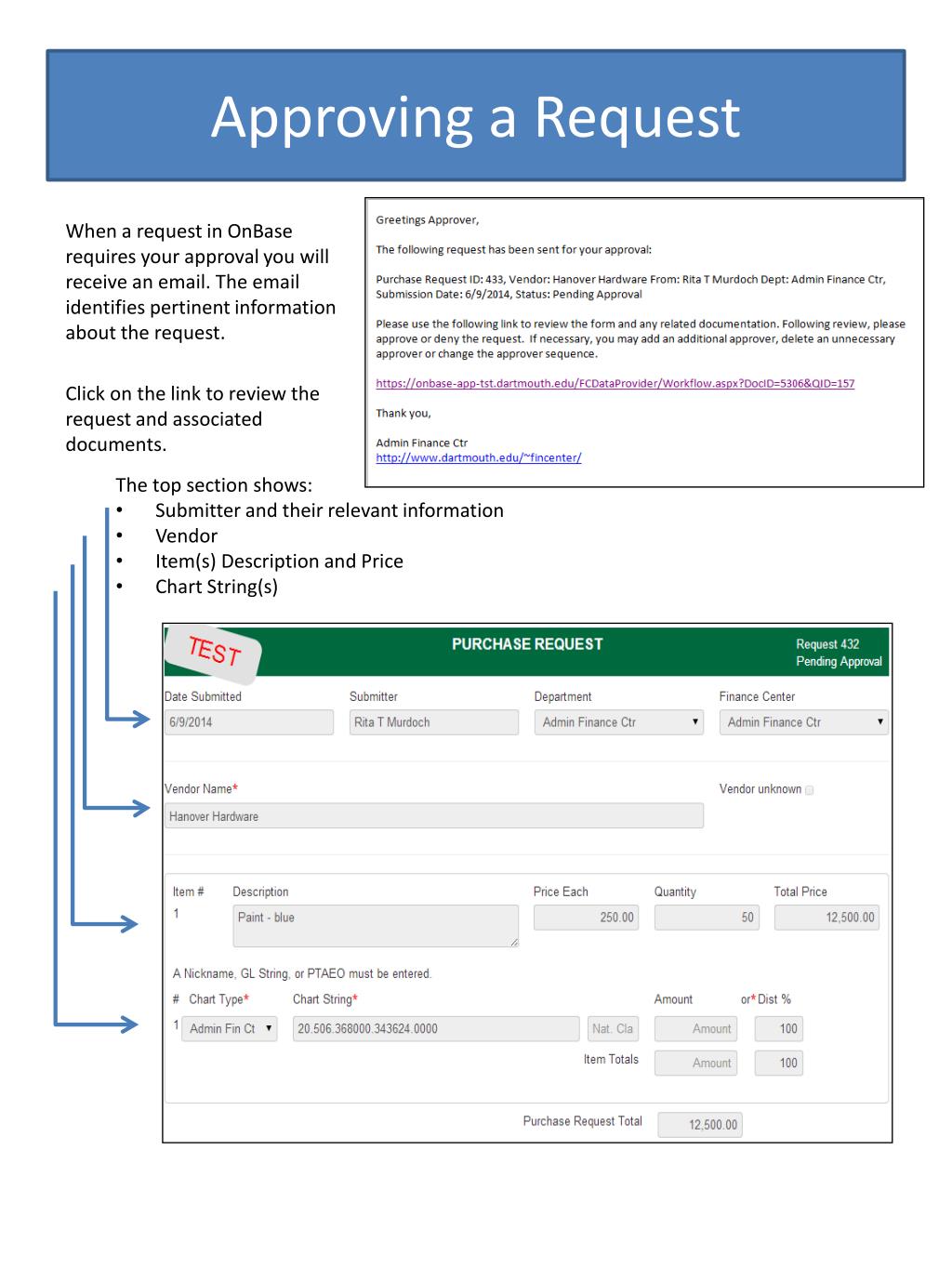
Approving a Request. When a request in OnBase requires your approval you will receive an email. The email identifies pertinent information about the request. Click on the link to review the request and associated documents. The top section shows: Submitter and their relevant information
Approving a Request - slide 1
01 / 3Approving a Request
1 / 17

Télécharger la présentation

Approving a Request
Une image / un lien ci-dessous est fourni (tel quel) pour télécharger la présentation

Politique de téléchargement : le contenu du site vous est fourni TEL QUEL pour votre information et votre usage personnel ; il ne peut être vendu, concédé sous licence ni partagé sur d’autres sites sans l’accord de son auteur.Le contenu vous est fourni TEL QUEL, pour votre information et votre usage personnel uniquement. Téléchargez la présentation en cliquant sur ce lien. Lors du téléchargement, si vous ne parvenez pas à télécharger une présentation, l’éditeur a peut-être supprimé le fichier de son serveur.Pendant le téléchargement, si vous ne parvenez pas à obtenir une présentation, le fichier a peut-être été supprimé par l’éditeur.

F I N

Plus de contenu associé

Transcription de la présentation
  1. Approving a Request When a request in OnBase requires your approval you will receive an email. The email identifies pertinent information about the request. Click on the link to review the request and associated documents. • The top section shows: • Submitter and their relevant information • Vendor • Item(s) Description and Price • Chart String(s)

  2. Approving a Request • The middle section shows: • Requestor if different from Submitter • Attachment: View the attachments using the View button The last section shows: • Approvals • Comments included by the Submitter or Finance Center

  3. Approving a Request • After reviewing the form, attachments and comments you have several options: • All is correct • Add any notes that are appropriate by clicking Add Note • Click Approve Purchase Request • Request is not appropriate or needs additional information • Click Deny Purchase Request at the bottom of the form • Type the reason for denial into the dialogue box and click Deny • This message will go to the Submitter • Make Changes to an Approver • Click Add/Edit Approvers • Add an Approver by typing last name, first name and picking from the list • Use the Sequence drop down to re-order approvers • Note you can’t re-order an approval that is complete • Click Route to other Approver at the bottom of the form • Remove an Approver by clicking Remove