Download
1 / 17
170 likes | 268 Vues
This guide provides a detailed step-by-step process for teaching staff members at Tanta University to activate their email accounts and change their passwords. Follow the outlined instructions to ensure secure access to your email. The steps cover entering your information, confirming your identity, and setting up a new password. It also includes procedures for selecting security questions and ensuring your account remains secure. For further assistance, refer to the contacts mentioned at the end of the guide.

E N D
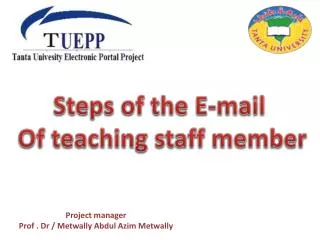
Steps of the E-mail Of teaching staff member Project manager Prof . Dr / Metwally Abdul AzimMetwally
To activate the account of teaching staff member https://www.outlook.com/
Inter E-mail of member 1 2 3 Inter the password Press sign in
Inter the password again 5 Select one question 6 7 The answer of selected question Retype the E-mail 9 8 Another E-mail sending the password to it in the care of need
Select the country 10 11 Selsct the city Enter the post code 12 13 Retype the password
Select the language 14 Retype the password 15
Steps of changing the password Project manager Prof . Dr / Metwally Abdul AzimMetwally
1 Press option
2 Press change your password
3 Year of birth 4 Press accept
5 Press change
Inter the old password 7 8 Inter the new password 9 Inter the new password again Press save 10
Thanks Prepared by :- Eng / Asmaa Naeim Mohamed Eissa Eng / Mai Ahmed Mohamed Saber Portal Electronic Project – Tanta University