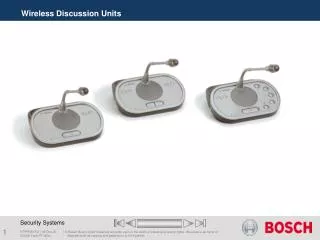
Configuration and Usage of Wireless Discussion Units: Modes, Settings, and Battery Management
This guide provides comprehensive instructions for configuring and utilizing various modes of Wireless Discussion Units, including Single Delegate, Chairman, and Dual Delegate modes. It covers microphone sensitivity adjustments, volume restoration features, and headphones level reduction. Additionally, it addresses battery management, including operation time, charging duration, and indicators for battery status. Perfect for ensuring optimal performance in discussions, meetings, or conferencing environments.

Configuration and Usage of Wireless Discussion Units: Modes, Settings, and Battery Management
E N D
Presentation Transcript
Wireless Discussion Units DCNW Tech PT WDU
Wireless Discussion Units 12 Configuration switches Mode I II 1 1 Single Delegate • All types of Wireless Discussion Units can be put in the single delegate mode and use the default microphone Button. I&U Instructions DCNW Tech PT WDU
Wireless Discussion Units 12 Configuration switches Mode I II 1 3 Chairman • All types of Wireless Discussion Units can be put in the chairman mode and use the DCN-DISBCM Buttons. I&U Instructions DCNW Tech PT WDU
Wireless Discussion Units 12 Configuration switches Mode I II 3 3 Single delegate with auxiliary control • You can only put these types of Wireless Discussion Units in the single delegate with auxiliary control mode: • DCN-WDD • DCN-WDV • For control you can use the DCN-DISBCM or DCN-DISBDD Buttons. • The delegate can use the left microphone button as an auxiliary button. For example, to activate an indicator. • Note: When the delegate pushes the auxiliary button, the auxiliary button makes an event. Use the Open Interface to program the actions that must be started by the event. I&U Instructions DCNW Tech PT WDU
Wireless Discussion Units 12 Configuration switches Mode I II 3 1 Dual Delegate • You can only put these types of Wireless Discussion Unitsin the dual delegate mode: • DCN-WDD • For the microphone control use the DCN-DISBDD Buttons. I&U Instructions DCNW Tech PT WDU
Wireless Discussion Units 12 Configuration switches Internal settings I II 2 1 MicrophoneSensitivity • Adjusts the sensitivity of the microphone that is connected to the discussion unit between +2dB and -2dB. • To increasethe microphone sensitivity with steps of 0.5 dB, push the > volume button ones. • To decrease the microphone sensitivity with steps of -0.5 dB, push the < volume button. I&U Instructions DCNW Tech PT WDU
Wireless Discussion Units 12 Configuration switches Internal settings I II 2 2 Volume restore function • To enable, push the > volume button. The LED around the microphone buttons come on as green. When the unit is enabled, it automatically selects known headphone volume. • To disable, push the < volume button. The LED around the left microphone button comes on as red. When the unit is enabled, it automatically sets the volume to -18 dB. • Note: When the discussion unit has two sets of volume buttons, configure the volume restore function with the right set of volume buttons. I&U Instructions DCNW Tech PT WDU
Wireless Discussion Units 12 Configuration switches Internal settings I II 2 3 Headphones level reduction • To enable push the > volume button. The LED around the microphone buttons come on as green. When the microphone is ON, the headphones level reduction is 18 dB. • To disable push the < volume button. The LED around the left side of the microphone button comes on as red. When the microphone is ON, there is no headphones level reduction. • Note: When the discussion unit has two sets of volume buttons, configure the level reduction function with the right set of volume buttons. I&U Instructions DCNW Tech PT WDU
Wireless Discussion Units • If the yellow LED is on, the wireless discussion unit is out-of-range. • If the red LED flashes, the battery pack of the wireless discussion unit is empty within 1 hour. DCNW Tech PT WDU
Place and replacements of Buttons and Rims DCNW Tech PT WDU
Battery Pack • Lithium Ion Battery • Operation Time : • Up to 20 hours • Charge Time : • Up to 3 hours • Integrated capacity LEDS to show the capacity of the battery pack DCNW Tech PT WDU
Battery Pack Capacity LEDS No. LEDs onBattery capacity (hours) 5 18 - 20 4 13 - 18 3 8 - 13 2 3 - 8 1 < 3 DCNW Tech PT WDU
Place and replacements of DCN-WLIION Battery DCNW Tech PT WDU
Power Adapter • Input 100 - 240 V(AC) + 10%, 50 - 60 Hz • Output 9 V(DC), 550 mA Note : The power plug of the poweradapter can be changed. DCNW Tech PT WDU
Product Technology End of section DCNW Tech PT WDU